
Omnichannel Contact Center
Configuration: Agents
Reading time | 2 minutes
About
The agents can receive inbound calls when they are included in a queue or linked to a skill. They can’t be selected as a next node inside the rest of available nodes in your account.
⚠️ You can’t add new agents
In order to request new agents you have to contact to your sales manager or with our Customer Service department. In case you are a Partner, follow the instructions regarding your country.
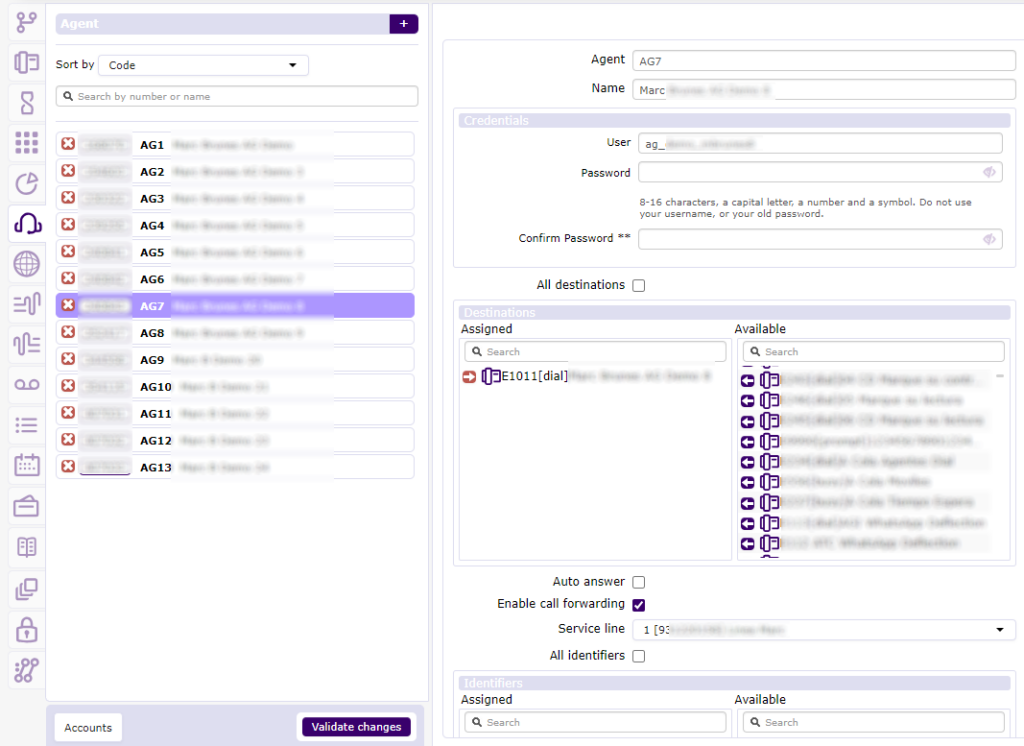
Agent Fields
| Field | About |
|---|---|
| Sort by | It allows to sort the agents my name, ID or Agent cod (AGXXX). |
| 🔍 Search by | It allows to search an agent by name or by code (AGXX). |
| Agent list | Agent list enabled in your account |
| Agent | Agent Code related to the agent selected. This code is established by the system automatically. |
| Name | Name related to the agent selected. It can be modified. |
| Credentials | User: username related to the agent selected. The username can’t be modified. Password: the admin user accoutn can establish a new password for the agent. |
| Destinations | Assigned: it shows the destinations linked to the agent. The agent will see them as available in the agent module 👇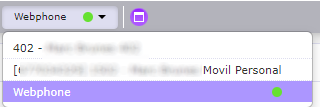 Webphone Agents will always have linked their own webphone extension by default. If you move their webphone extensions to the Available colum, the agents won’t be enabled to answer the call.  |
| Enable call forwarding | It allows to the agent perform outbound calls. |
| Service Line | If the agent is enabled to perform outbound calls, you have to choose the default line to save the call recordings. |
| All Identifiers | It allows to the agent selected use all the numbers enabled in your account as identifier for the outbound calls. |
| Identifiers | Assigned: it shows the lines added to the agent to use as identifiers for the outbound calls. The agent will see the available identifiers inside the agent module: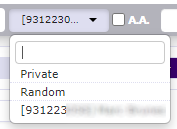 Available: it shows the lines not added as identifiers for the agent selected. |