
Omnichannel Contact Center
Configuration: Prompts
Reading time | 1 minute
About
Prompts tab allows to create media messages with TTS (Text To Speech) or upload audio files in MP3 and WAV format or recording messages in real time.
Once the audio message is created you can select it in:
- As a welcome message in Lines
- Extensions type Prompt
- Reminder announcement in Queues
How to add prompts
| Action | About | Screenshot |
|---|---|---|
| Uplodad audio | It allows to upload an audio file from the user’s PC. Choose Audio when you create a new prompt in order to upload an audio file. |  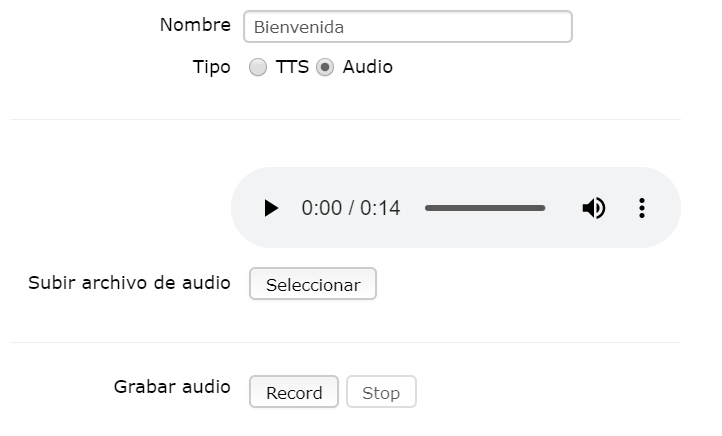 |
| Recording | In order to record your own message, choose Audio and click over Record to record your message. Once you finished, click over Stop button. Remember to connect a microphone in your PC and allow MIC permission in your browser. |  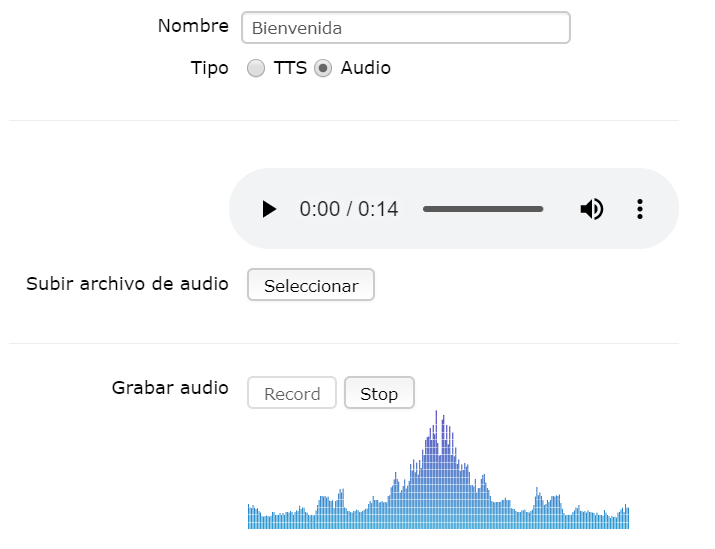 |
| Add new message using TTS (Text To Speech) | TTS allows to create audio messages in different languages: 1) Write the name. 2) Select TTS type. 3) In Prompt Text write the text. 4) Choose the voice according the language. 5) Select the speed. 6) Click on Generate and press play to preview the message. 7) Click on save in order to select this message in the nodes available in your account. |  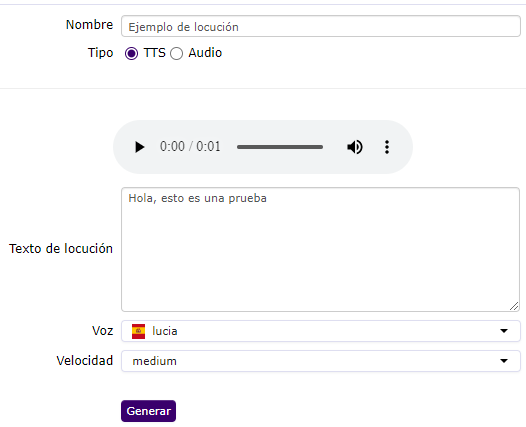 |