
Omnichannel Contact Center
Chat Supervisor
Reading time | 2 minutes
About Chat Supervisor

Chat Supervisor allows you to see how many conversations do you have for each channel, how many conversations are waiting to be attended and how many current conversations are handling the agents.
Chat Supervisor Fields
| Field | Screenshot | Description |
|---|---|---|
| Chat icon |   | Conversations from Webchat channel |
| Webchat icon |   | Conversations from Whatsapp channel |
| Account |   | Chose the account for the Chat Supervisor. If you have only one, it will be loaded by default. |
| Conversations |   | It shows how many conversations per channel are being handled by Bots (automatic responses), how many conversations are waiting on queues and how many agents are busy. |
| Agent status |   | It shows a resume about how many agents are setup on your account and their current status. Available: the agent can receive conversations. E.g.: If the agent has a maximum of 5 conversations and currently is messaging with 4 customers, it means he can receive 1 more conversation, so, the agent will appear as Available. Full: the agent can’t handle more conversations Offline: the agent doesn’t have enabled the chat channel. |
| Services |  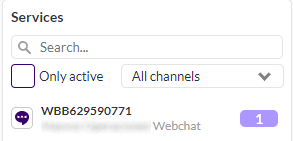 | It shows the services for each channel and how many conversations are currently active (number). You can search by name, filter by channel and only display the services with current active conversations. |
| Queues |  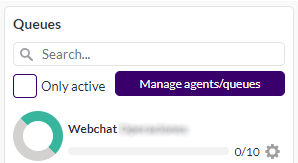 | It shows the queues enabled for Webchat and Whatsapp services. It will show how many conversations are waiting for being attended and the status of the agents for the related queue (offline/online). See Chat Queue Features to see the configuration options available. |
| Agents |   | Shows the status of each agent (online/off-line) and how many conversations are currently handling for each channel.You can filter by name, status or by queue. |
Chat Queue Features
You can manage agents and queues directly from the Queue/Agents management from Chat Supervisor.
Restricted by user’s permissions:
This option is restricted by user’s permissions. If you can’t see these options, you can request the activation to our Support Department.
| Feature | Screenshot | Description |
|---|---|---|
| Quick settings button |  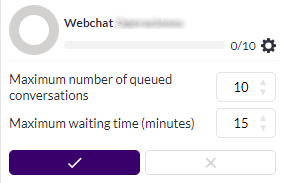 | You can configure how many conversations are allowed on the related queue and the maximum waiting time. |
| Manage agents/queues |  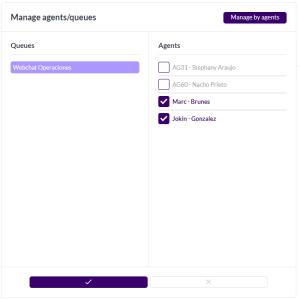 | Allows to link/unlink agents to the related queue filtering per agent or per q |