
Omnichannel Contact Center
Account Module
Reading time | 3 minutes
- CONTENT
- Account module fields
- Create New User
- Edit or Add user’s information
- Blocked user and password management
- How to unlock user
- Change user password
About
The Account module enables you to manage permissions, edit and create users. Otherwise you will be able to establish new passwords for the users.
Account Module fields

| Name | Description |
|---|---|
| Search by name | Search the user by name or user name |
| Update button | Update the user information related to: – Manager user privileges – Create a new password – Change user’s name – Edit contact information (email address and phone number). |
| Name and surname | Name related to the user. |
| Username | Username for login. |
| Contact mail for the user. | |
| User Status | If Disable check is active, it means this user has been cancelled by request or by the account admin. |
| Locked/Unlocked | Locked (Red button): the user is locked when he failed more than 3 times writing his password. The admin user of the account can unlock the user clicking on this button.Unlocked: the user is not blockecd and can log in. |
Create New User
If you want to create a new user, click on the Create new user button and fill the information and privileges related to this user.
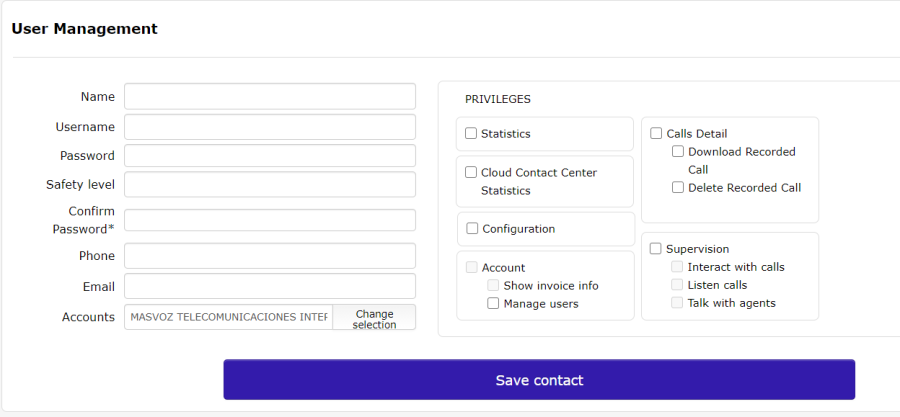
💡 Remember you can’t create new agents. If you need new agents please contact with us.
Remember that every Supervisor user has an extra cost.
Edit or Add user’s information
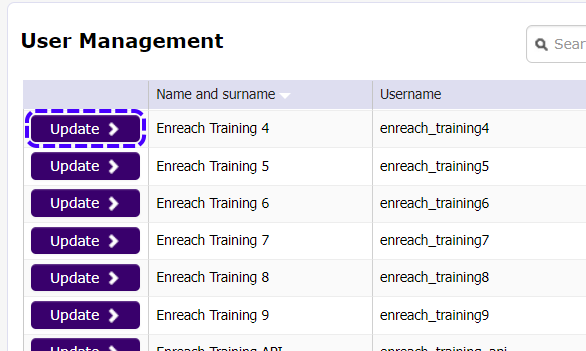
In order to add new information to your account’s users, click on the Update button on the left of each user.
You will be able to change or add information in the available fields except the Username, and enable or disable privileges.
Blocked user and password management
If an user writes wrong the password for 3 rimes, the user will be blocked.
You will see the user blocked under Blocked red label in your users list:

How to unblock the user
Click on the Blocked button to unlock the user. It will appear as Unlocked. Change the password if it’s needed. Once the user logs in ccc.enreach.com it will be requested to establish a new password.
Change user password
If an user blocked his access, as an admin user you will be able to set a new password from the account module.
To change the user’s password see the steps below 👇
1) If the user is blocked, first of all unlock the user clicking on the Blocked button.
2) To update the password, click on the Update button ➡️

3) Write the new password and confirm the new password.
4) Click on Update to apply the new user’s password (check the password policy below 👇).
5) Once the user logs into ccc.enreach.com with the new password for the first time, it will be requested to establish a new one.
Password Policy
If you write the new password and it turns red, it means the new password is not under our password policy.
Your new password must contains:
– 8-16 characters
– 1 capital letter
– 1 number
– 1 symbol
– Do not use your username or a password established before.