
Omnichannel Contact Center
Configuration: Lines
Reading time | 4 minutes
- CONTENT
- Call Check
- Lines
- Lines View
- Configuration
- Plan
- Tree View
About
The Lines tab on the Configuration module will show the number of phone lines you have active in your account and the configuration related to the line selected.
Lines are the entry point for your inbound calls, it’s very important to create a quality call flow to route your calls to the correct destination.
Call check
Our system before routing the call to your default routing destination will check the following steps to be sure the call must be routed to another call flow.
- Active plan: system checks if the line has an alternative Plan active to avoid default routing plan..
- White list, black list or generic list: system checks if the origin number of the customer is included in one of those lists to route the number to the routing related.
- On holiday: the system checks if the date of the call is included in the Holiday Conditions list for the related line to route the call based on the destination selected for the Holiday Conditions.
- Time conditions: the system checks the day and hour of the inbound call matches with the time conditions setted on the line in order to route the call to the destination selected.
- Initial prompt: the system checks if the line has configured an initial prompt to be played at the start of the call.
- Route to: if any the rest fields don’t apply, the system will route the call to the destination selected on the Route to field.
Lines
You will find the following information on the left of Lines section:
| Field | Screenshot | About |
|---|---|---|
| Sort by |  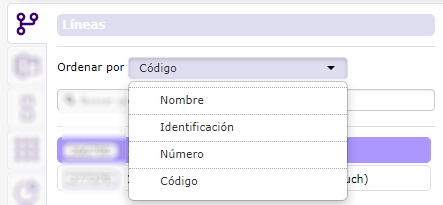 | Allows to show the information sorted by: Name Identification Number Code |
| Search |   | It allows to search the line by number or per name. |
| Lines list |  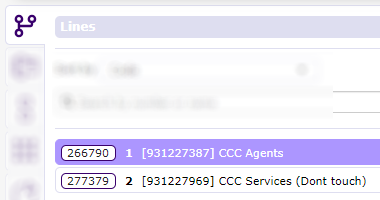 | It shows the number of lines active in your account and the phone number related. |
Lines View

Configuration
This section shows the main routing rules of the line selected. You will find the following fields:
| Field | Screenshot | About |
|---|---|---|
| Name |  | Name of the line selected. |
| Active plan | 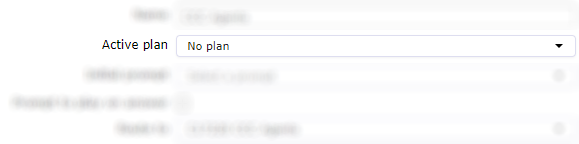 | It shows if you have enabled an alternative plan on the line selected. If it’s OK, you will see the name of the plan and the rest of fields of the main routing rules in grey. |
| Initial prompt | 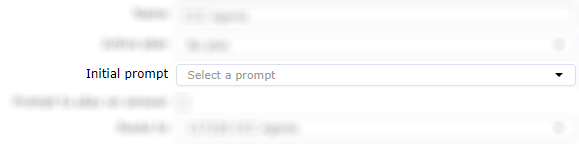 | You can select an initial prompt to be played everytime a customer calls to your number. 💡 The prompt selected must be created before on the Prompts tab of the Configuration module. |
| Prompt to play on answer | 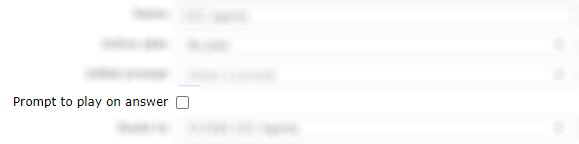 | This check enable play the initial prompt configured before when the customer answers the outbound call performed by our dialers. |
| Route to | 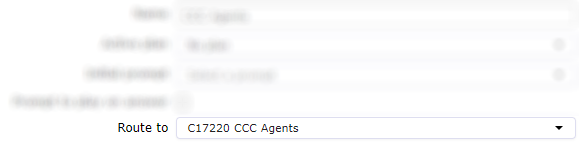 | Default routing of the selected line will apply if any other condition matches with the day, hour or contact of the inbound call. |
| Lists | 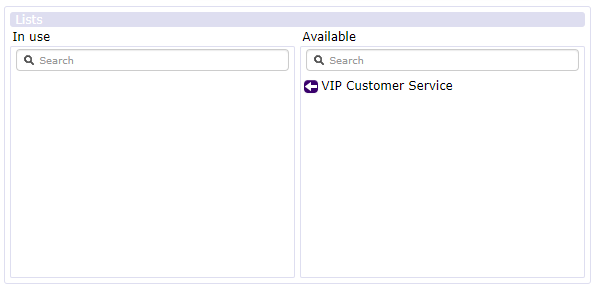 | In this section you can apply the contact lists you created for White list, Black list or Generic list on the Lists tab on the configuration module. If you want to apply a list you must drag the list from the Available column to the In use column. |
| If fax route to (email or number) |  | If the inbound call comes from a fax, you can forward it to an email (PDF) or an analog fax number in order to process the fax communication. |
| Time conditions |  | On Time conditions you can route the call to a destination according to the start date and hour and the final date and hour established in this section. |
| Holiday conditions |  | Holiday conditions allows to send the inbound call to a different routing according the date and month added to the Holiday list related. For example you can create a Holiday list for the month of August and route the call to a different call flow during this month. |
| End call after X seconds |  | This options allows to end the call after X seconds. If you write 0 call will not be ended. |
| Record calls |  | This checkbox allows to record all inbound calls or outbound calls performed using this phone number by default. |
Plans
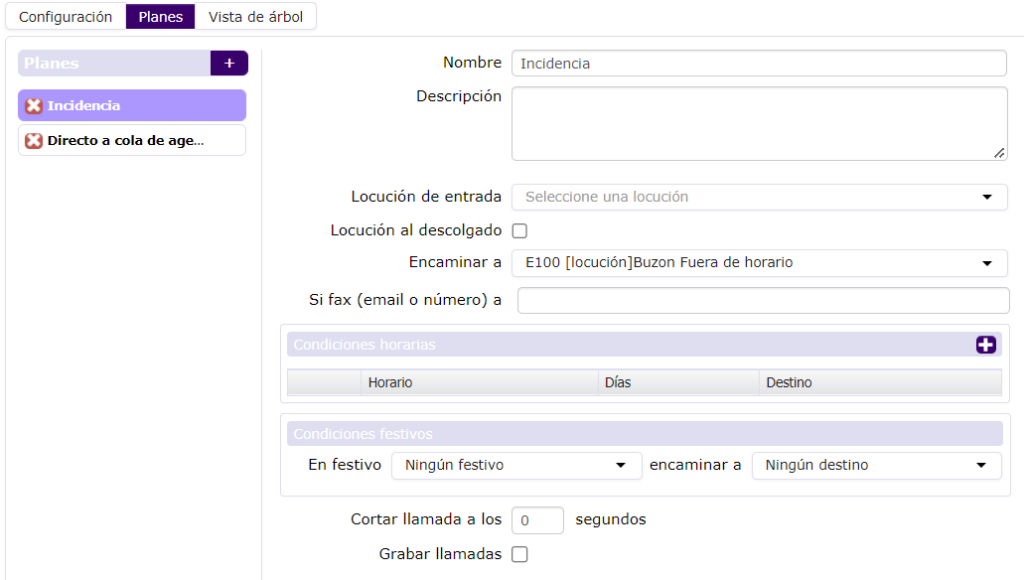
Plans section will show all the alternive plans you have created for the selected line.
💡 Plans are useful to create an alternative call flow to be applied quickly and replace the main configuration plan.
For example, in case of an external issue that doesn’t allow the agents to answer the inbound calls, you can apply the alternative plan to replace the main configuration flow to play a message.
How to active an alternative plan?
1. Go to the Configuration tab, open the field for Active plan and choose the plan:
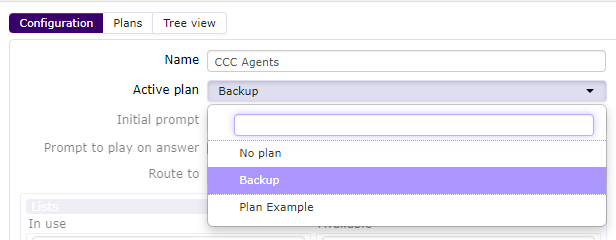
2. The main configuration rules will appear in grey color.
3. Click on Save changes and the on Validate to apply the selected Plan.
How to disable an active plan?
1. Go to the Configuration button and go to Active plan.
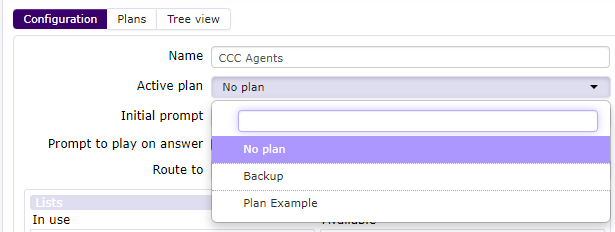
2. Open the Active plan form and select No plan.
3. Click on Save Changes and Validate to disable the plan
Tree View
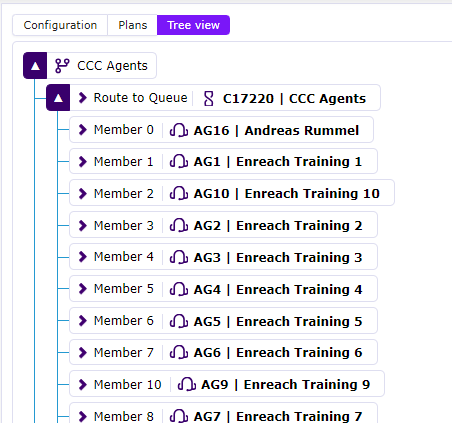
⬅️ The Tree View will show the call flow for the line selected.