
Omnichannel Contact Center
Configuration: Extensions
Reading time | 5 minutes
- CONTENT
- Extensions List
- Extension Settings
- How-to Articles
- How to play an announcement and then route to another node
- How to send the inbound call to your voice-mail
- How to use an extension for business hours
- How to link a holiday list to an extension
About
You can use extensions as final nodes to end the call or as middle nodes to route the call to other available nodes in your call-flow based in the extension settings.
The extensions can be used for different purposes:
- Phone forwarding
- Play a prompt
- Send a busy tone
- Time conditions
- Holiday Conditions
- …
💡 At the end of this user guide you will find some cases to use the extensions in your call-flow.
Extensions List
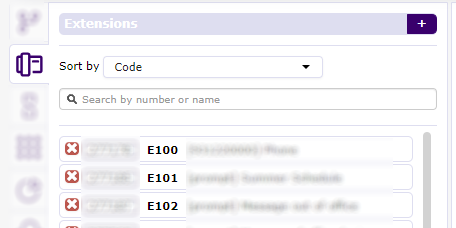
At the left of the panel you can see all the extensions you created in your account and the extension type.
According to your role, you will see the following fields:
| Name | About |
|---|---|
| ➕ Create a new extension | This button allows you to create a new extension. You will have to choose an extension range, extension name and the type of the extension. |
| Sort by | You can sort the extensions by name, ID, redirection type or code. XXX). |
| Search by 🔍 | It allows to search extensions by name or number. |
| Extensions list | It shows the extensions enabled in your account. To see the content related to each extension you must select the extension. |
| ❌ Delete | It allows to delete the selected extension. |
Extension Settings
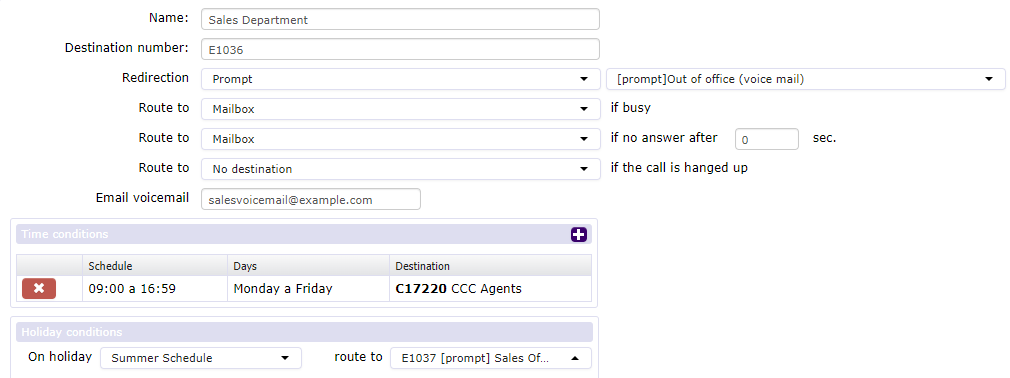
You will see the extension settings when you choose an extension from the list.
You will find the following fields inside the extension 👇
| Name | About |
|---|---|
| Extension Name | Name related to the selected extension. It can be modified afterwards. |
| Extension number (range) | Extension number established once you created the extension. It can’t be modified. |
| Redirection | You can choose different types of redirections: Landline: it allows to forward the call to a phone number when the call flows arrives to this extension. Prompt: it allows to play a message once the call flow arrives to this extension. Otherwise, you can use Route if busy and Route if no answer to send the call to another available node after the message. Busy tone: it allows to send a busy tone in order to end the call. Otherwise, you can use Route if busy and Route if no answer to send the call to another available node after the busy tone. Dial: this kind of redirection is not available to the end user. You will see this kind of redirection if the extension is related to a webphone extension or any other kind of adhoc functionality related to your account. |
| Route if busy | If you choose Busy or Prompt on the redirection field, you can use this filed to send the call to another available node in your account once the call flows arrives to this extension. |
| Route if no answer | Enabling this field the extension will route the customer to the node selected after X seconds once the call flow arrives to this extension. |
| Route if the call is hanged up | Enabling this field the extension will send the call to the node selected once the call is ended. Don’t use this field if you are not sure about how it works. |
| Time conditions | Enabling the time conditions in your extension you can choose the node where to route the call when the call flow arrives to the extension. If the day and hour of the call doesn’t match with the time conditions you established, the call flow will check the type of redirection of the call and the nodes selected on the Route if busy and Route if no answer fields. |
| Holiday conditions | Enabling Holiday conditions you can link a Holiday list to the extension to route the call to another available node in your account once the call flow arrives to this extension. If the day and month doesn’t match with the Holiday list linked to the extension, the call flow will check the Redirection type and the nodes selected on the Route if busy and Route if no answer fields. |
| Hide calls & Whisper | Hide calls: enabling this check the system will hide the origin number of the inbound call when the call flow arrives to this extension. Whisper: this field enables to play a message previously created. It only applies when Redirection type is Landline (the phone number will listen the whisper after answering the inbound call) or when Redirection type is Busy and the next node selected in Route if Busy and Route if no answer is a queue (the agents or extensions added in the queue will listen this message once they answer the call). |
How-to articles
Here we explain some examples using extensions as middle nodes to route the call to another available nodes in your account, playing announcements or sending the call to a voice-mail.
How to play an announcement and then route to another node
Imagine your customer chooses an option on your IVR to talk with your agents and you want to announce the option selected by the customer saying “Ok, we will transfer you with our agents” 👇

- If you don’t have the audio message created, first of all, go to Prompts and create the audio message you want to play.
- Click on the ➕ button and create a new extension. Write the extension name and the extension number (at least 3 digits).
- Select Redirection type “Prompt” and choose the audio message do you want to play.
- Choose the agents queue in the Route if busy and Route if no answer fields.
Important note: in this case the Route if no answer field must be configured with 0 seconds. - Use this extension in your call-flow.
How to send the inbound call to your voice-mail
Imagine the customer calls you when you are out of office but you want to offer the option to leave a message after announcing your business hours 👇
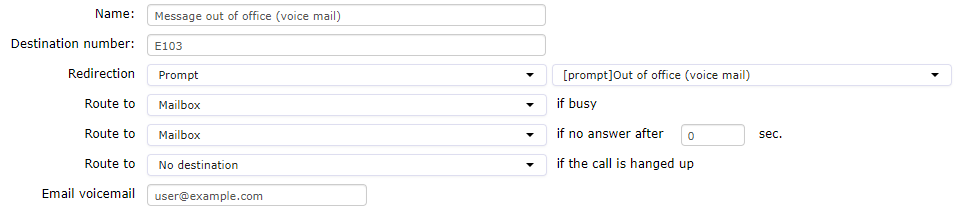
Step by step:
- If you don’t have the audio message created, first of all, go to Prompts and create the audio message you want to play.
- Click on the ➕ button and create a new extension. Write the extension name and the extension number (at least 3 digits).
- Select Redirection type “Prompt” and choose the audio message do you want to play.
- Choose Mailbox in the Route if busy and Route if no answer fields.
Important note: in this case the Route if no answer field must be configured with 0 seconds. - Write your email in the Email voicemail field.
- Use this extension in your call-flow.
How it works?
According to the example, in case if an inbound call arrives to this extension, the system will play the message selected on the Redirection type and will save the audio message from the customer. Once the recording is finished, the system will send the voice-mail to the mail you wrote inside Email voicemail field.
Important note: only the messages longer than 3 seconds of duration will be considered as voice-mail message. If the message is not longer than 3 seconds, the voice-mail will not be sent to your mail box.
How to use an extension for business hours
Imagine you have different departments with different business hours. Thanks to the Extensions you can create different extensions with different business hours and link them to the related option in your IVR.
Your Sales Department’s business hours are from Monday to Friday, from 9AM till 5PM and you want the system checks if the call is received within the business hours after the customer chooses the option related to the Sales Department in your IVR. Otherwise, the system will play a message informing about the business hours 👇
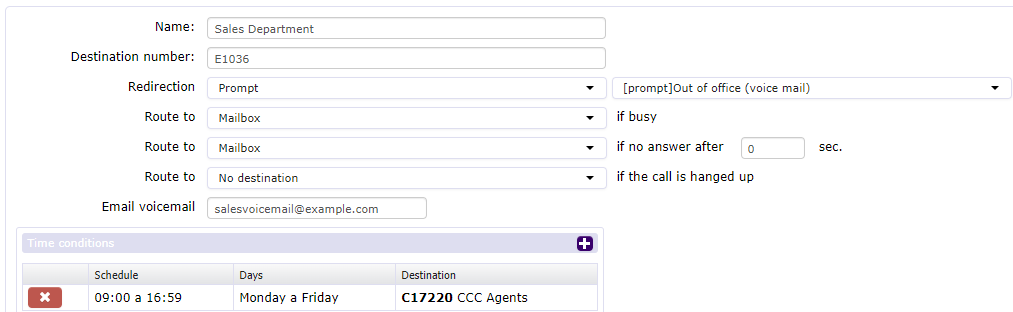
Step by step:
- If you don’t have the audio message created, first of all, go to Prompts and create the audio message you want to play.
- Click on the ➕ button and create a new extension. Write the extension name and the extension number (at least 3 digits).
- Select Redirection type Prompt and choose the audio message you want to play.
- (Optional) In case if you want to send the call to a voice mail, choose Mailbox in the Route if busy and Route if no answer fields.
Important note: in this case the Route if no answer field must be configured with 0 seconds.
Write your email in the Email voicemail field. - Click on Save.
- Once saved, go to Time Conditions and choose the business hours for your department and select the destination to route the call in the business hours selected.
- Click on Update.
- Now you can use this extension in your call-flow. For example 👇
- IVR: As we explained, you can use this kind of extension inside an IVR for different departments with different business hours.
- Lines: You can use this kind of extension in Route to field for the lines that share the same Time conditions and the same routing extensions inside their business hours.
How it works?
According to the example, in case if an inbound call arrives between Monday to Friday from 9AM to 5PM, the system will send the call to the Agents queue.
If they day and hour of the inbound call doesn’t match with the business hours, the system will check the redirection type and the options selected in the Route if busy and Route if no answer fields.
How to link a holiday list to an extension
Following with the previous example with the Sales Department, imagine your Sales Department will be off the 9th of september and you want the system plays a message saying they are not available when arrives a call in this date.

Step by step:
- If you don’t have the Holiday list created, go to Special days tab and create a new list adding the 9th of september. Save the changes.
- Create a new extension in order to play the message for the day off (9th of September).
- Go to the extension created before for the Sales Department.
- Go to Holiday conditions and choose the Special list day created for this purpose.
- Choose the extension created with the message in Route to field.
- Save changes and Validate.
- Now you can use this extension in your call-flow. For example 👇
- IVR: As we explained, you can use this kind of extension inside an IVR for different departments with different business hours and Holiday lists.
- Lines: You can use this kind of extension in Route to field for the lines that share the same Time conditions, Holiday lists and the same routing.
How it works?
According to the example, in case if an inbound call arrives during 9th of september, the system will send the call to the extension E1037 and will play the message selected in this extension.
If the call arrives during any other day, firstly will check the business hours and the routing extension.
If they day and hour of the inbound call doesn’t match with the business hours, the system will check the redirection type and the options selected in the Route if busy and Route if no answer fields.