
Omnichannel Contact Center
Configuration: Queues
Reading time | 5 minutes
About
Queues allow to deliver the inbound call to the members of the queues according to some parameters inside the queues settings in order to answer the call as soon as possible.
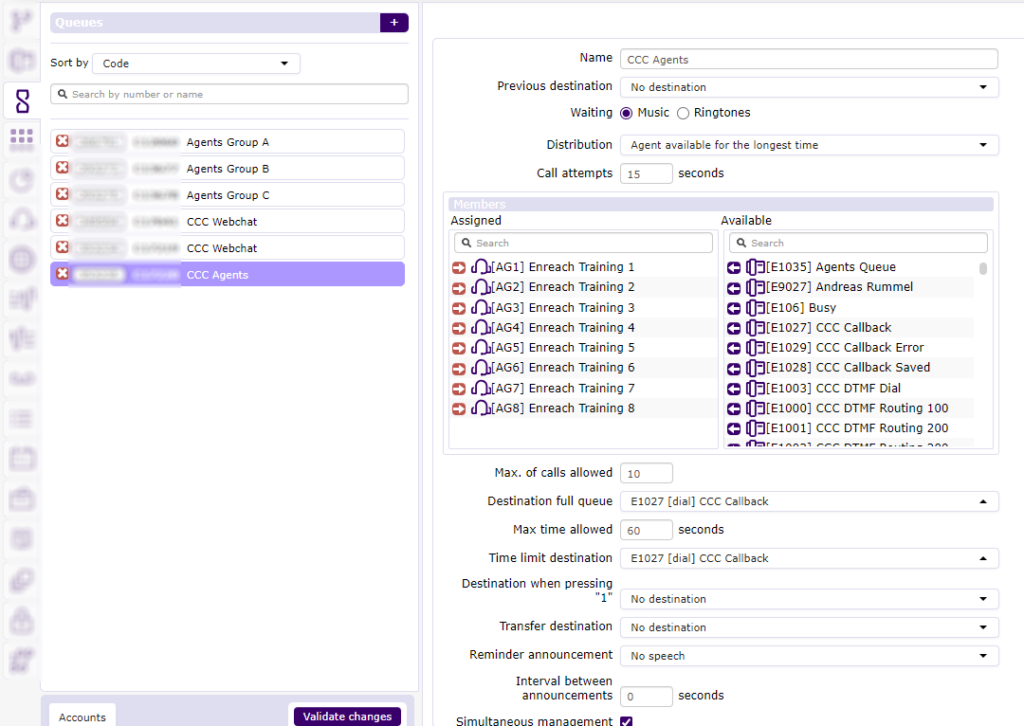
Members of the queue
According to the members of the queue, you can expect the following behavior:
Agents: the queue will deliver the inbound calls only to the available agents in the queue. If the agents are busy, the queue will check the settings related to Max Calls Allowed and Max Time Allowed in order to finish the call or hold the call in the queue.
Important note 👇
Remember if you manage your agents with Skills you have to manage the members of the queue on the Skills module: 
Extensions: the queues will deliver the inbound calls to the members of the queue according to the queue’s Distribution. If any member of the queue don’t answer the inbound call, the queue will check the settings related to Max Calls Allowed and Max Time Allowed in order to finish the call or hold the call in the queue.
Queues List
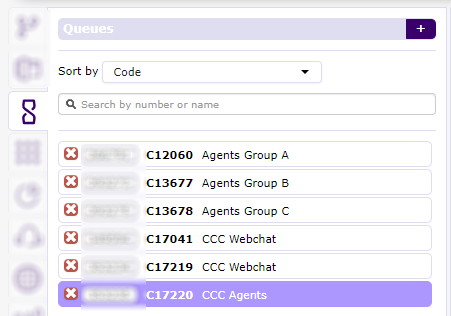
At the left of the panel you can see all the queues you created in your account.
According to your role, you will see the following fields:
| Name | About |
|---|---|
| ➕ Create a new queue | This button allows you to create a new queue. |
| Sort by | You can sort the queues by name, ID or code. |
| Search by 🔍 | You can search queues by name or ID. |
| Queues list | It shows the queues enabled in your account. To see the content related to each queue you must select the queue. |
| ❌ Delete | It allows you to delete the queue selected. |
Queue Settings
You will see the queue settings when you choose a queue from your list.
According to your roles, you will see the following fields 👇
| Name | About |
|---|---|
| Queue Name | Name related to the queue selected. |
| Previous destination | Previous destination to route the call before arriving to the queune. Currently is not in use. |
| Waiting | It allows to play hold music or ringtones while the user is waiting to be attended. In case of ringtones the maximum hold time is limited to 60 seconds due telephony network. |
| Distributions | It shows the following distribution methods to deliver the call to the queue memebers. Important note: remember if you manage your agents with Skills this field will appear as Other. You have to manage the agents under skills using the Skills module. Random: it deliver the calls randomly to the available agents or the extensions added to the queue. Consecutive with memory: it delivers the calls to the available agents or extenions according to the list. For example: the 1st call will be delivered to the 1st member of the list. The 2nd call will be delivered to the 2nd member of the queue. In case of agents, if the agent according to the list is busy, it will be delivered to the next one according to the list. Consecutive: same behaviour as consecutive but without memory. The queue will deliver the calls checking always if the 1st member of the queue can answer the call. In case of agents will check if the 1st agent of list is available. If not, the call will be delivered to the next one according to the list. Less recent: the call will be delivered to the agent or extension with the higher time without receiving a call. Ring all: the queue will deliver the call to the 5 first members of the queue at the same time. If the 5 first members doesn’t answer the call, the queue will deliver the call to the next 5 members of the queue. Important note: this distribution is not recommended with agents as a members of the queue. Fewer calls: the call will be delivered to the agent or extension who received less calls during the current day. Agent available for the longest time: the call will be delivered to the agent wich has the higher time in available status. |
| Call attemps | It allows to configure the ringing time for each extension or available agent added in the queue. If the extension or the agent doesn’t answer the inbound call, the queue will deliver the call to the next extension or agent according to the Distribution mode selected previously. |
| Members | Assigned: it will show the extensions or agents added in the selected queue. Available: it will show the extensions or agents available to be added in the selected queue. Important note: remember if you manage your agents with Skills this list will be empty. You have to manage the agents under skills using the Skills module. |
| Max. allowed calls & Destination full queue | Both fields are related to configure the number of maximum of waiting calls can be holded by queue and where the call will be routed if the maximum of allowed calls is reached. Important note: if you don’t choose any destination in Destination full queue field the call will be finished. |
| Max. allowed time & Time limit destination | Both fields are related to configure the maximum of waiting time for the holded calls in your queues and where the call will be routed if this time is reached. Important note: if you don’t choose any destination in Time limit destination field, the call will be finished when the maximum time setted is reached. |
| Destination when pressing 1 | You can choose a destination to route the call when the customer dial 1 while is waiting to be attended. We highly recommend you inform about this option inside the audio message selected in the Reminder announcement field. |
| Transfer at destination | This field allows to configure a destination which can be used by the Supervisor clicking on the ➡️ button in the waiting call list on the queues view in Supervisor: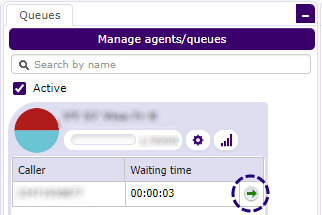 If the Supervisor user click over ➡️ the call will be routed to the destination selected in Transfer at destination field. |
| Reminder announcement & Interval between announcements | Here you can select an audio message previosly created to be repeteated every X seconds configured in Interval between announcements. |
| Simultaneous management | This checkbox allows to send all the waiting calls to all the available agents at the same time according to the Distribution method selected. If it’s disabled, the waiting calls will be delivered one by one to the available agents. |
| Waiting time (announcement) | Disabled by default. This option informs to the customer about the average waiting time to be attended according the answered calls during the current day. This message can be enabled saying the minutes or the minutes and seconds to be attended.  |
| Action at the end of the call | This option allows to send the call to another node when the agent finishes the call with the customer. In case if the customer finishes the call, it will not apply. For example, it’s usefull to send the call to an IVR like a Survey to evaluate the agent performance and meassure the customer’s satisfaction. Otherwise, it can be disabled when the agent transfers the call to another destination or external phone number. |
| ACW Time | If this option is enabled, the queue will change the agent status to After Call Work status (ACW) automatically during X seconds when the agent ends the call. During this time the agent can perform other tasks or take a brief break until the next call. Otherwise, the agent can change to any other status during the ACW time. |