
Omnichannel Contact Center
Calls Supervisor
Reading time | 12 minutes
About
The Supervisor module for Calls allows to the user see the current calls in real time in his account, see the agent status, waiting calls and quick statistics about the performance of the agents.
The Supervisor for Voice Channel enables you to display the current calls on all lines contracted by the client, obtaining information in real time about:
- Current calls.
- Number of calls per line.
- Originating number of the call.
- Busy destinations and call handling time.
- Total queued calls (if the user contracted this option).
- Number of agents occupied, free, and in after-call work (if the user contracted this option).
- Call status
In addition, more detailed information on the status of the calls can be obtained using the different components of the Supervisor module.
Top Banner & Wallboards
| Name | Section | Description |
|---|---|---|
| Calls Graphic |   | Shows how many current calls are active in your account. |
| Resume |  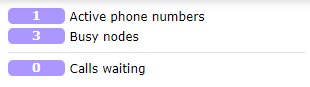 | Active phone numbers: number of service lines with calls active. Busy nodes: number of nodes busy. Calls waiting: number of calls are waiting to be attended on your queues |
| Agents status |   | Allows to see how may agents are active per status. |
| Incoming call alert |   | This button plays a sound everytime a new call is active on your account. Disabled by default. |
| Detailed Wallboard |   | This button opens a new window with a real time statistics dashboard based in agents and queue statistics. See explanation below. |
| Call Wallboard |   | This button opens a new window with a real time call statistics dashboard. See explanation below. |
| Account selector |   | Chose your account clicking on this button. If you only have one account it will be loaded by default. |
Detailed Wallboard
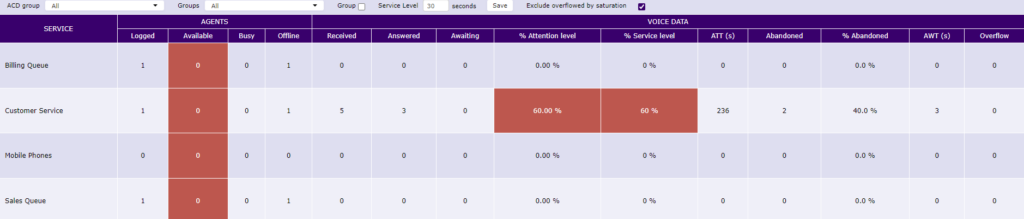
This wallboard shows a real time statistics based in agents status and queue statistics.
| Field | Description |
|---|---|
| Exclude overflowed by saturation | Calls overflowed by saturation (it’s related to the calls that reached the maximum allowed calls on queue) will be excluded on the statistics data. Enabled by default. |
| Service Level | Define the service level by calls answered before X seconds. About Service Level Service level shows a percentage based in how many calls have been answered before X seconds. |
| ACD Group | Filter the information by the queue selected. |
| Groups | If you have created Groups of queues on the Statistics module you can chose them on this field and show the information by group. |
| Voice Data | It shows a real time summary based on queue statistics. |
| Agents | It shows a real time summary about how many agents are logged or in the rest of status. |
| Service column | It shows the queues enabled on your account. |
Call Wallboard
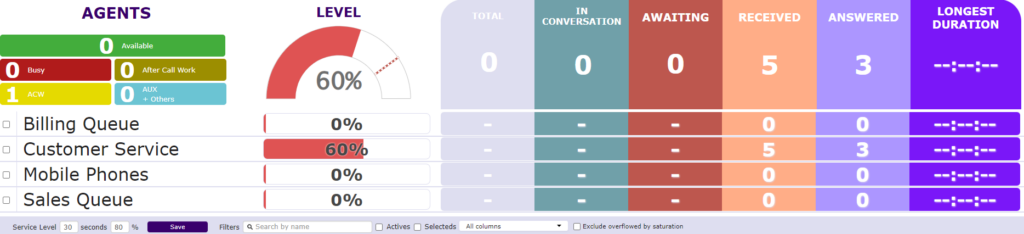
This wallboard shows a real time information about agents per status, service level and calls managed per queue.
| Field | Description |
|---|---|
| Agents | It shows how many agents are Available, Busy, ACW, After Call Work or Others. |
| Level | It shows the service level per queue (left) based on the Service Level defined at the bottom of the wallboard. About Service Level Service level shows a percentage based in how many calls have been answered before X seconds. |
| Call information | It shows a summary per queue about the Total calls received, In conversation, Awaiting (to be attended), Received, Answered and the call with the Longest Duration registered during the current day. |
| Filters | You can filter by Name, by Actives queues (queues with waiting calls), Selected queues (see left check button on the queue). Call status filter columns: you can filter the call status columns chosing the ones you are interested on:  |
| Exclude overflowed by saturation | Calls overflowed by saturation (it’s related to the calls that reached the maximum allowed calls on queue) will be excluded on the statistics data. Enabled by default. |
Line View
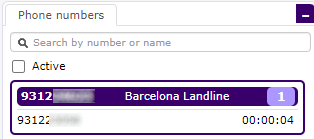
It shows the account service lines by phone number (with or not with current calls).
Line Features
| Feature | Screeshot | Description |
|---|---|---|
| Filter by Active Phone numbers |  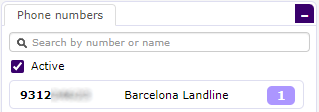 | Clicking on “Active” check you will only see the service lines with current calls. |
| Call Counter |  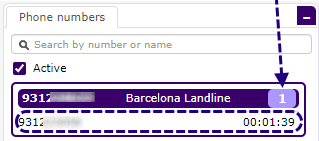 | Clicking on the call counter you will se the information related to the origin number and current call time |
| See where is the call |   | Clicking on the origin number you will see where is the current call or who is talking with the customer if the call has been answered. |
Queues View
Queue monitoring options enables you to see real time information about your queues performance.
Queue types
You can create queues with agents or without agents. (E.g.: you can add mobile destinations to the queue)
| Queue type | Screenshot | Description |
|---|---|---|
| Agents Queue | 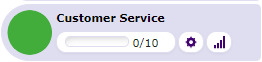  | Agent Queue will show agents status graph based on the agents added to that queue. Status colors: Green: available agents Red: busy agents Yellow: Backoffice status Blue: Away + other status Orange: agents in ringing status Gold: agents in After Call Work status (if it’s enabled) |
| No agents Queue |  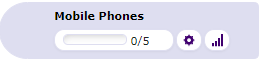 | You can include mobile phones in a queue, but you won’t see the status of the mobile phones. The graph status is realted only to the agents. |
Queue Features
| Feature | Section | Description |
|---|---|---|
| Manage agents/queues |   | This option is restricted by user’s permissions. If you can’t see these options, you can request the activation to our Support Department. By clicking on the Manage Agents/Queues button you can manage the agents added to a queue or see how many agents are included in the queue. If you choose Manage by queues you will see per queue all the agents included on the related queue. If you choose Manage by agents you will see per agent in which queue is included:  In booth cases you can add or delete the agent from the queue. ⚠️ About Skill based queues If you have Skill based queues this module won’t show any information related to the queues. The Skill base queues must be managed from the Skills module. |
| Filter by Name or Active queues |  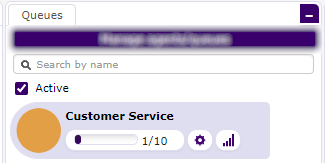 | You can filter the queues by Searching by name or clicking the Active check to see only the queues with waiting calls. |
| See waiting calls |  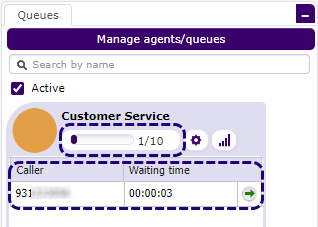 | By clicking on the calls banner (which shows how many calls are waiting to be attended), a popup will appear displaying queued calls and the waiting time. |
| Call Transfer |  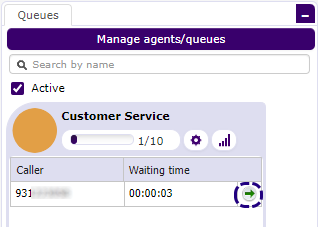 | Clicking on the following button on the waiting calls list from the queue you can forward the call to the destination setted up on the Configuration module for queues. ⚠️ Check overflow destinations If you don’t have any destination on this option and you click on this button call will be ended abruptly. All calls forwarded by this feature will be registered like Abandoned on Queue Statistics. |
| Quick Configuration |  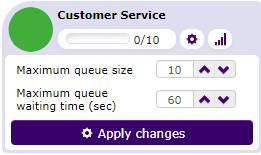 | This option is restricted by user’s permissions. If you can’t see these options, you can request the activation to our Support Department. Clicking on the settings button you can define the maximum queue size (maximum number of calls allowed) and the maximum queue waiting time (in seconds). ⚠️ Check the overflow destinations Remember to check the overflow destinations on the Configuration module inside the Queues module. If you don’t have any destination or node setted up for these rules, calls will be ended abruptly when they reach the maximum of calls allowed or the maximum waiting time. |
| Quick Queue Statistics |  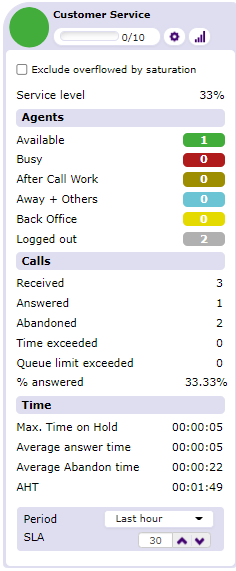 | By clicking on the Statistics icon you can view the information related to the queue selected. You will se a summary about: Agents: see how many agents are active in each status. Calls: summary about calls managed by the queue. Time: summary about maximum Hold time, Average for the Answer, Abandone and Handle time. You can show this information choosing different periods and setting up the SLA in calls answered before X seconds- |
Nodes View
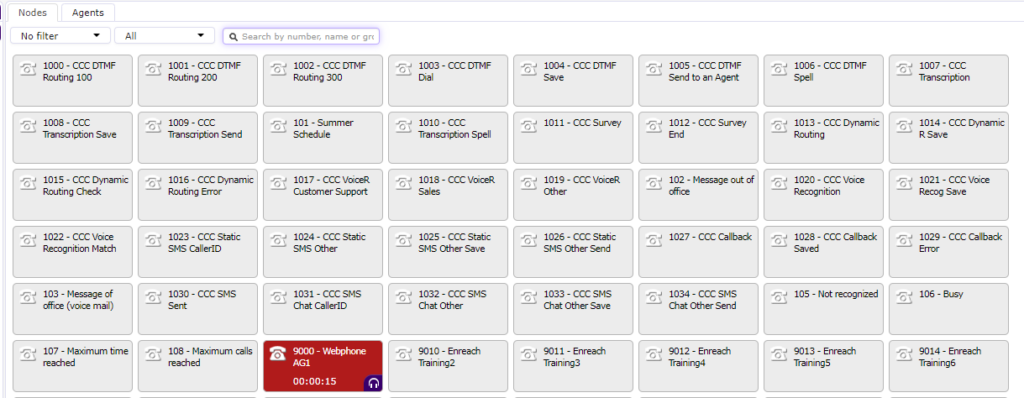
The following view shows how many destinations are enabled in your account and their status: busy (red) or not (grey).
| Name | Screenshot | Description |
|---|---|---|
| Filtering by status |  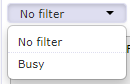 | Filter by busy status. |
| Filtering by queue |   | Filter by destinations included in the selected queue. |
| Searching by name |   | Search by destination name |
| Full view |   | The time each destination has been busy is displayed. For those destinations that can answer more than one call, the total number of calls that are being answered is indicated instead of the time. |
| Only text view |   | It shows if the destination is busy or not. |
Agents View
When the Agents service is in use, users will see an active “Agents” tab, where you can monitor the status of all the registered agents in real time.
Agent View Features
| Feature/Button | Screenshot | Description |
|---|---|---|
| Full View |  | It will show a full view of all the agents and the handling time of the call in progress for each agent.  |
| Text Only |  | The name assigned to the agent and the agent’s Status (by color), as well as the time in call are displayed. When you move the cursor over any of the boxes, the agent’s full name is displayed. As in the case of the Destination view, this view enables you to take various steps in order to speed up the specific search for an agent.   |
| Filter by Agent Status | 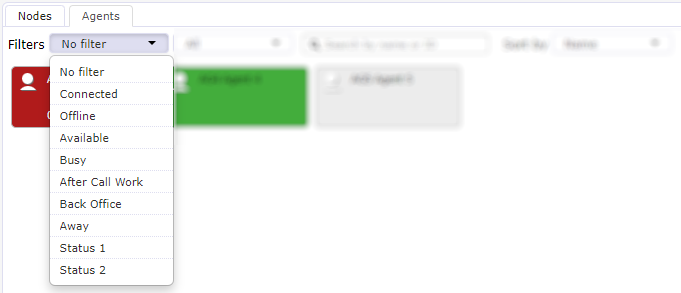  | By default, all agents are displayed, but you can filter to display only those agents in a given status, as per the choices in the dropdown list. |
| Filter by Agent Queue |  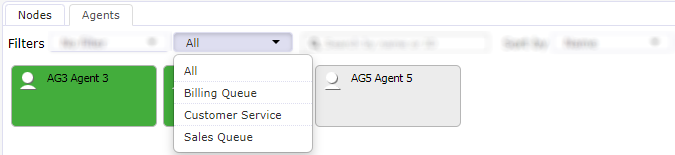 | You can filter to see the agents added per queue. |
| Agent Search |  | Enables you to perform a search for a specific agent using agent name or ID. |
| Sort by |  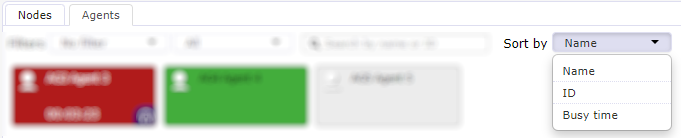 | You can arrange the agent listing alphabetically by name, ID or busy time. |
| Time in status |  | This check allows viewing the time elapsed in the current status for each agent.It doesn’t apply to the off-line ones. |
Agent Information

Restricted by user’s permissions:
This option is restricted by user’s permissions. If you can’t see these options, you can request the activation to our Support Department.
Clicking over the agent you can see real time information about:
- How many calls the agent received and how many calls has answered
- Connection time (first connection, last connection, total time connected, time by status)
- As an admin, you can change agent status and skills (if skills based queue is enabled)
Agent Information Fields
| Field | Screenshot | Description |
|---|---|---|
| Change status |  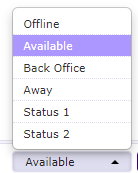 | Allows to the Supervisor user change the agent status. 💡 If the agent is Busy you can’t change the current status till the agent finish the conversation. |
| Skills |   | It allows to change agent skills (if it’s enabled). Clicking over the Skills button you will be redirected to the Skills module management to see the skills related to the agent selected. |
| Agent statistics |   | In this section you will see statistics related to the agent during the current day: Agent connection: – First connection from the agent – Last connection received from the agent Total time connected Calls: – Incoming Calls received – Answered calls Time spent per status: – In conversation (busy status) – After Call Work – Back office – AUX – Others (It will show total time in custom status) – Current status time |
| Update information |  | Update the agent information. |
| Close agent information |  | Close agent information module. |
Current Call Management
Clicking over headphones button you can interact with the current call.
Restricted by user’s permissions:
This option is restricted by user’s permissions. If you can’t see these options, you can request the activation to our Support Department.
Current Call Management features
| Feature | Screenshot | Description |
|---|---|---|
| Call Interaction |  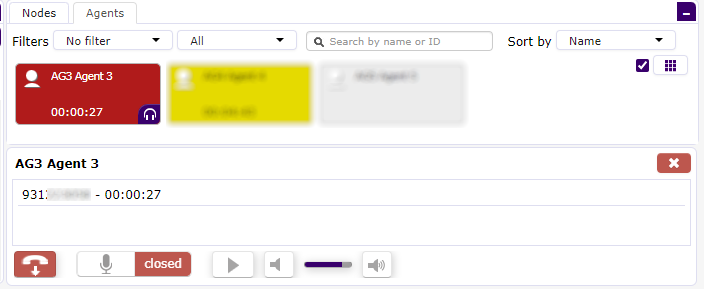 |   Clicking over the current call, if you press this button you will finish call.   This option allows to talk to the agent to help him on the current call. The customer will not hear anything. Be sure you have allowed the MIC permission on your browser.  Clicking on Play button you will start listening the current call and manage the volume. |
| Close |  | Close the current call management window. |