
Omnichannel Contact Center
Digitals Channels Agent
Tiempo de lectura | 2 minutos
- ÍNDICE
- About
About
The Digital Channels module allows to the agent answer conversations with your customers from WhatApp, Webchat or Email.
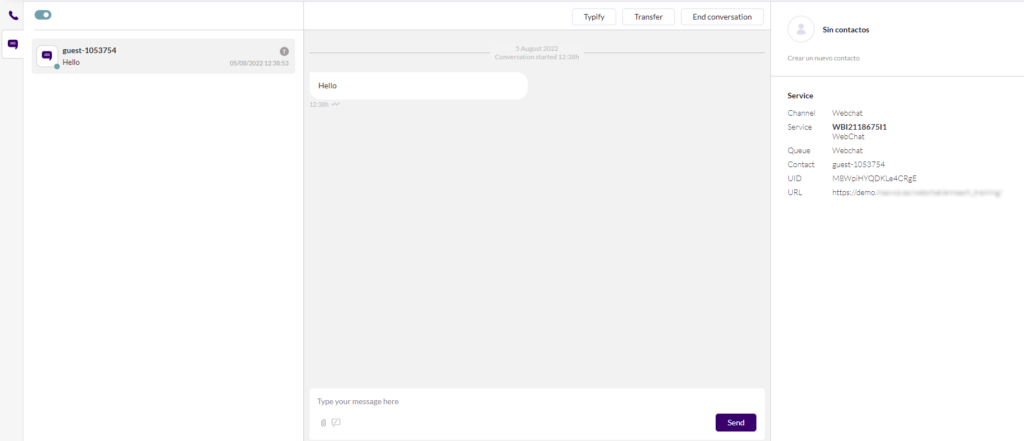
Digital Channels Notifications
| Type | When? | Screenshot | About/Action |
|---|---|---|---|
| Desktop | New conversation |  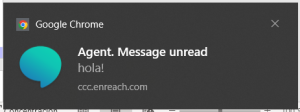 | Clicking on the notification to open the conversation in the agent module. |
| Tab (Browser) |   | – | |
| Sound | – | The agent will listen a beep sound for every new conversation. | |
| Agent Module |  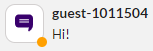 | If the agent receives a new conversation (not answered), he will see an orange circle on the conversation history. |
Digital Channels Fields
| Field | Description |
|---|---|
| On/Off button (switch) | Enable/disable receiving conversations from Digitla Channels (Webchat, Whatsapp and Email). |
| Conversation History | It shows all the conversations received by the agent during the current day and the last message received from the customer. T button allows to tipify the conversation (if it’s enabled). T in grey colour means that the typification is optional T in red colour it means that typification is mandatory. |
| Typify | It allows to typify the conversation (if it’s enabled). |
| Transfer | Transfer the current conversation to another available agents from your account. Choose the agent and then click to Transfer button. |
| End conversation | Finish the current conversation with the customer. |
| Contact information | Contact information based on the email address added on the Address Book.You can create a new contact or edit the information about the current contact. |
| Service information | It shows the following information: Channel: Webchat or Whatsapp. Service: Service line related to the channel. Webchat services starts with “WBXXXX”. Whatsapp services will show the mobile number active for Whatsapp. Queue: queue who delivered the incoming conversation. Contact: contact information based on the email address added on the Address Book. UID: internal ID related to the conversation. URL: Website where webchat widget is hosted. |
| Message box | Message box where the agent can answer to the customer. Click on “Send” or press Enter to send the message. Attach files: this button allows to the agent attach files and share them with the customer.  Canned response: this button allows to the agent use template responses on the conversation:  |