
Omnichannel Contact Center
Statistics Module
Reading time | 14 minutes
- CONTENT
- Calls Report
- Surveys Report
- ACD (Queues) Report
- Agents Report
- Agent Activity Report
- Agent log Report
About
The Statistics module shows a call summary about the inbound and outbound calls. Also you can get detailed information about the performance related to your queues and agents.
As seen on Call Detail module, you can perform a default search (with no filtering) or perform an advance search using the Search Options to obtain more relevant data.
Calls Report

Call report for inbound/outbound calls by call status during the time period selected.
| Name | Description |
|---|---|
| Group by |  Daily Profile. Call behavior for the full 24-hour day, listing the total number of calls received every half hour. If the interval selected extends to more than one day, the query generates a table in which each column shows the total number of calls every half hour over that period. E.g.: If 2 day interval is selected, the first cell of Answered column will display the total number of calls answered between 00:00 and 00:30 for these 2 days. Minute. Calls managed every 30-minutes. Day. Total number of calls by day. Month. Total number of calls grouped by month. Service. Total number of calls grouped by service line. Service Groups. Total number of calls aggregated by service group, employing the groups previously configured at Settings tab by the user. Destination. Total number of calls grouped by last destination. Destination Group. Total number of calls grouped by group of destinations using the groups previously defined at Setting Account. Total number of calls grouped by account. (Only applicable in those instances in which the same user has access to more than one account.) |
| Period |  Set the time period. |
| Graph/data |  Choose if you want to see the result on a graphic or data (table). |
| Call status |  Answered. Calls answered by an agent or destination. Busy. Calls finished in a busy destination. (E.g.: call flow forward inbound call (with no queue) to a mobile destination which is busy). Not delivered. Calls delivered to a destination not reachable. (E.g.: call flow forward inbound call (with no queue) to a mobile destination which is offline or to an IP destination is not registered). Not answered. Calls were delivered to a destination doesn’t answer the inbound call (E.g.: the agent heard the ring tone but doesn’t answer the inbound call). Abandoned. Calls where the user hang up before being attended waiting on the queue or hanged up during a message or IVR. |
Search options

| Name | Description |
|---|---|
| Destinations | Choose the destination/agent who answered inbound calls or made outbound calls. |
| Phone number | Choose the service line to filter inbound/outbound from that line. |
| View | End nodes: Entire call. shows final destination and total call duration. All nodes: Conversation at destination. Shows all nodes involved and call duration per destination till arrive at final destination. If using All nodes the call is not answered on a specific node, no call duration will be displayed. |
| Province | It shows the region related to the contact number. It only applies in spanish landlines. |
| Destination Groups | This option enables you to group destinations into in a single group and get a summary related to the group |
| Phone number Groups | This option enables you to group service lines into in a single group and get a summary related to the group. |
Settings

You can create Destination Groups (extensions), Service Groups (lines), and Queue Groups with more than one member to customize reportings according to your needs.
Settings example
The following is an example of setting up Queue groups (it also applies to creating Service and Destination groups).
- Create a new queue group clicking on “Add new group“.
- Once is created, select the group
- Drag and drop the available queues you wish to be part of the new group.
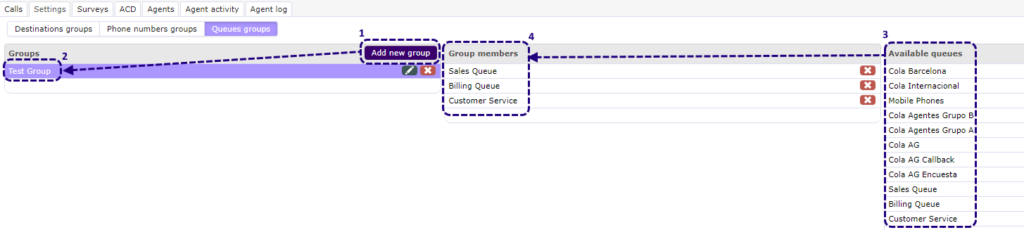
Once the new group has been created, you can choose it in the ACD report tab opening the Search options. Once the new group has been selected, the Queue report can be generated by clicking the Search button.

Surveys Report
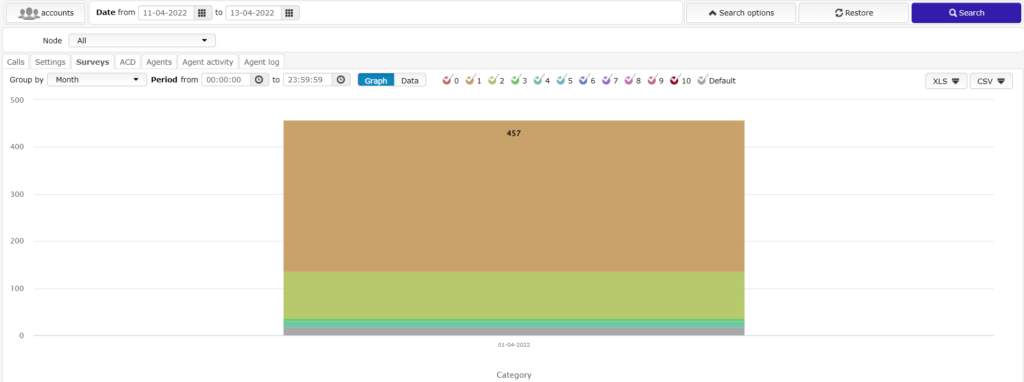
Report about keys dialed during a certain period of time on your IVRs or Surveys.
| Name | Description |
|---|---|
| Node | Node filter: choose the IVR or Survey from your account. |
| Group by |  Month: shows all the keys dialed during the months selected on the Date form. Day: group all the keys dialed by day during the dates selected on the Date form. Time: group all the keys dialed every 30 minutes by the period selected. Value: group all the keys dialed by value. Node: group all the keys dialed by nodes (IVRs or Surveys) |
| Graph/Data | It shows the information as Graphic or data (table) |
| Colours (Score) | Every number of the score has a colour. |
ACD (Queues) Report
Report about the inbound calls managed by queues to see the performance of the agents or destinations included on queues.
About Call Time Duration on queues:
Call time duration on this report is based when call is routed to the queue. Call time before or after the queue is not included.
Digital Channels:
ACD report doesn’t include information about Digital Channels queues for Webchat, WhatsApp or Email.

Search options

| Name | Description |
|---|---|
| Service level | Configure time for the service level information. Service level shows a percentage based in how many calls have been answered before X seconds. This ratio can be modified where it’s available. |
| Groups | Choose the ACD group created on the Settings module. |
| Exclude overflowed by saturation | Excludes all calls overflowed by saturation on the queues on the ACD report. |
| ACD Group | Filter by queue. |
| Service | Filter queue calls by service (lines). |
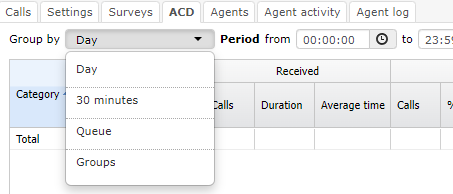
Group by options
| Group by… | Description |
|---|---|
| Day | Shows the information about all account queues grouped by day during the time period selected. |
| 30 minutes | Shows the information about all account queues grouped by 30 minutes period during the time period selected. |
| Queue | Shows the information per queue. |
| Groups | Shows the information for the choosen Group (you configured before on the Settings tab). |
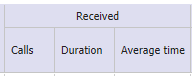
Received
Report about calls received.
| Name | Description |
|---|---|
| Calls | Total number of calls that received. If you choose “Exclude overflowed by saturation“, the number of calls shown will not add calls overflowed by saturation. |
| Duration | Total duration of the calls received. |
| Average Time (AHT) | Average duration of inbound calls to the Queue. |
Answered Calls
Report about answered calls.

| Name | Description |
|---|---|
| Calls | Total answered calls. |
| % | Percentage of calls answered VS received calls. If you choose “Exclude overflowed by saturation“, the number of inbound calls shown will not add calls overflowed by saturation. |
| Duration | Total time spent handling answered calls from the Queue. |
| Average time duration | Average time for the answered calls. |
| Answered within X Secons | Calls classified by the time to be attended: 0 to 10 seconds, 10 to 20 seconds, 20 to 30 seconds, 30 to 60 seconds, and more than 60 seconds. |
| AWT | Average Waiting Time for the answered calls. |
| ATT | Average Talking Time. |
| Average Handle Time (AHT) | Average time spent handling answered calls from the Queue. It takes ATT + AOHT + AACWT (Average After Call Work Time) |
Call Overflow
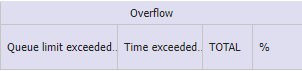
Calls overflowed due limit excceded or time exceeded.
| Name | Description |
|---|---|
| Queue limit exceeded | Number of calls that were overflowed due to having exceeded the maximum limit of queue allowed calls. |
| Time exceeded | Number of calls that were overflowed due to having exceeded the maximum waiting time limit on queue. |
| TOTAL | Queue limit Exceeded + Time exceeded. |
| % | Percentage of all calls that were overflowed VS received calls. |
Abandoned Calls
It shows the abandoned calls by the customers while they are waiting to be attended on the queue.

| Name | Description |
|---|---|
| Calls | Total abandoned calls |
| % | Percentage based on the abandoned calls VS received calls. |
| Duration | Total duration based on the abandoned calls. |
| ATA | Average Time to Abandon. Average time before abandonment of calls in queue. |
| Abandoned within X seconds | Calls classified by the time to be abandoned by the user: 0 to 10 seconds, 10 to 20 seconds, 20 to 30 seconds, 30 to 60 seconds, more than 60 seconds |
Service Level
Percentage based on calls answered before X seconds configured on the “Service level” box:

If you choose “Exclude overflowed by saturation“, the number of inbound calls shown will not add calls overflowed by saturation.
Agents Report
Switch Voice & Chat Report
| Switch Position | Description |
|---|---|
  | Switch to Voice to see all reports related to the voice channel. |
  | Switch to Chat to see all the reports related to the Webchat, WhatsApp and Email channels. |
Voice Channel
Statistics related to the calls managed by the agents.
From which nodes an agent can receive an inbound call?
This report measures how many call attempts the agent received from the queue (when the agent is available) or from the rest of agents (internal transfers). E.g.: if the agent is available on a queue and the agent answer the inbound call at the second attempt, Agents report will count 2 received calls for 1 waiting call at the queue.

Search options

| Name | Description |
|---|---|
| Agent | Filter by the agent name. |
| ACD Group | Agent statistics grouped by the queue selected. |
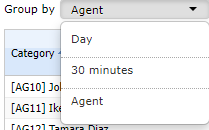
Group by options
| Group by… | Description |
|---|---|
| Day | It shows all account agents statistics grouped by day during the time period selected. |
| 30 minutes | It shows all account agents statistics grouped every 30 minuts during the time period selected. |
| Agent | It shows agent statistics for each agent during the time period selected. |
Received calls
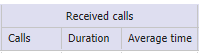
Call attempts received by the agent.
| Name | Description |
|---|---|
| Number | Total call attempts received. An agent can receive calls from: Queues: an agent can receive inbound calls from queues when the agent is available (green status). Every try will be counted a received call. Transfers: an agent can receive calls from another agent. Every transfer will be a received call in this report. |
| Duration | Total call duration for the received calls. |
| Average Time | Average time duration for the received calls. |
Answered calls

| Name | Description |
|---|---|
| Calls | Total answered calls. |
| % | Percentage of calls answered VS received calls. |
| Duration | Total duration of answered calls. |
| Average time | Average time for the answered calls. |
| ART (Average Response Time) | Average time between the moment the call is sent to an agent (ringing) and the agent answer the call. |
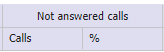
Not Answered Calls
| Name | Description |
|---|---|
| Number | Total based on not answered calls (call attempts) by the agent. |
| % | Percentage of not answered calls VS received calls (attempts). |
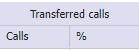
Transferred Calls
| Name | Description |
|---|---|
| Number | Number of calls that have been transfered by the agent to other agents or internal/external destinations. |
| % | Percentage of calls transfered VS received calls (attempts). |
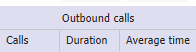
Outbound Calls
This report doesn’t include the Outbound calls by Dialers or Rescheduled calls by the agent.
| Name | Description |
|---|---|
| Number | Total number of outbound calls performed by the agent (this report not includes calls managed from the Dialout) |
| Duration | Total duration about the outbound calls performed by the agent. |
| Average Time | Average duration about the outbound calls performed by the agent. |
Digital Channels
Allows to search how many conversations have been received per each agent on each channel. Also the answered conversations by each agent and per channel. Finally, for the answered conversation, to KPIs are shown: Average First Response Time (AFRT), Average Response Time (ART).

| Field | Description |
|---|---|
| Group by | Group by Agent by default. |
| Received | Total: sum of all conversations received by each agent from all the channels Webchat: number of conversations received from Webchat Whatsapp: number of conversations received from Whatsapp Email: number of conversations received from Email |
| Answered | ¿What is an answered conversation? The platform counts as answered conversation when an agent replies with a message, transfers it to another agent or closes it manually. Total: total number of conversations answered by an agent from all the channels AFRT: Average First Response Time for all the conversations answered by the agent from all the channels he is included during the period selected. ART: Average Response Time for all the conversations answered by the agent from all the channels he is included during the period selected. Webchat: Number of conversations answered from Webchat channel. Whatsapp: Number of conversations answered from Whatsapp channel. Email: Number of conversations answered from Email channel. |
Agent Activity Report
Switch Voice & Chat Report
| Switch Position | Description |
|---|---|
| Switch to Voice to see all reports related to the voice channel. |
| Switch to Chat to see all the reports related to the Webchat, WhatsApp and Email channels. |
This report shows time spent for each status enabled for the agents and the information related to the connection time.

| Name | Description |
|---|---|
| Total connection time | Total connection time during the period selected. |
| Status (Time and %) | Time duration for each status and percentage about total connected time. |
| Rate | Rating between total connection time and Busy Time + Ringing Time. |
| First connection | First time connection received from the agent during the period time selected. |
| Last connection | Last disconnection received from the agent during the period time selected. |
Search Options

| Name | Description |
|---|---|
| Agent | Filtering by agent name. |
| ACD Group | Filtering by Queue |
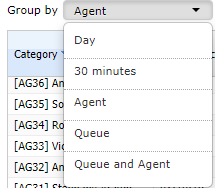
Group by options
| Name | Description |
|---|---|
| Day | It shows the agent activity report grouped by day during the time period selected. |
| 30 minutes | It shows the agent activity report grouped every 30 minutes during the period selected. |
| Agent | It shows the agent activity report by agent during the time period selected. |
| Queue |  It shows the agent activity report by queue during the time period selected. How it works? Ringing, Hold, Busy and ACW are status related to the call management and the queue that delivered the call to the available agents. The remaining status (Available, AUX…) are divided according the Busy time of the agents in the queue.(E.g.: if an agent is 30% Busy by calls delivered from Queue A, the Available status time is based on that time.) |
| Queue and agent |  It shows the agent activity related to the agent and queue during the time period selected. Why appears NO_QUEUE? This time is related to the outbound calls performed by the agent. Also if the agent didn’t receive calls from a queue and has Busy time, the rest of status will appear on NO_QUEUE. |
Digital Channels
This report shows time spent for each status for the Digital Channels and the information related to the connection time.

| Field | Description |
|---|---|
| Group by | Group by Agent by default. |
| Category | Agent ID and Agent name |
| Total connection time | Total connection time of the agent in the Digital Channels module  |
| Available | Time that the agent has been available to receive new conversations. |
| Full | Time spent by the agent at its max_capacity to manage conversations. |
| First Connection | First connection of the agent on Digital Channels module on the searched period. |
| Last Connection | Last connection of the agent on Digital Channels module on the searched period. |
Agent log Report
This report shows the agent log status by agent, date and time for every status change requested by the user (AUX, Ready, Offline, etc) or managed by the system due to a call (ACW, Ringing, Busy) adding the internal call ID on the “Event” column.

| Name | Description |
|---|---|
| Agent | It shows the agent ID (AGXX) and the related name. |
| Date | It shows the date related to the new agent status change. |
| Time | It shows the time related to the new agent status change. |
| From | It shows the agent status was setted up before the new agent status. |
| To | The new agent status. |
| Event | Event that forced the new agent status. If the Event Shows the line, Queue and Call ID, it’s related to an inbound call. If the Event shows the line and the internal Call ID, it’s related to an outbound call. If the Event shows only the internal Call ID it’s a internal call made by the agent to another destination from the account. If you don’t see any information on the Event, it means it’s a change status made by the agent. |