
Enreach Virtual Agent
Knowledge Assistant
Reading time | 5 minutes
- INDEX
- 1. Knowledgebase Generator
- 1.1 Select the channel from which you will use the knowledge
- 1.2 View the generated content: Knowledge articles
- 2. Knowledgebase Assistant
- 2.1 Unknown dialog trigger
- 3. Knowledgebase Say
- 4. Knowledgebase Agent Assistant
- 4.1 Configure Agent Assistant folder
- 5. FAQs
Description
Thanks to the Knowledge Assistant you can create a conversational assistant specialized in your business knowledge and procedures, for example by training it by importing the FAQs from your website.
How do I train it?
Our Knowledgebase Assistant tool generates its knowledge base by reading PDF files or by reading web addresses where you have published your information. This way, it is always up to date with any changes in your business.
Let’s start creating your assistant!
1. Knowledge Generator
From the Knowledgebase Generator you can import your PDF documents or enter the link to your website where your business documentation is located.
💡 Visit the following link to learn how to train your assistant.
2. Knowledgebase Assistant
Thanks to the Knowledgebase Assistant you will be able to answer your customers’ questions based on the knowledge previously generated in Knowledge Generator.
Within Flows select the Ask type nodes and choose Knowledgebase Assistant:
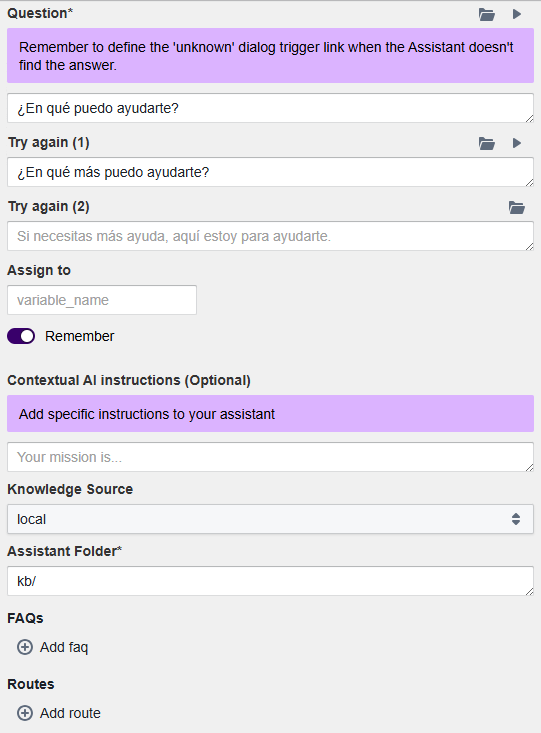
The sections of this node are:
Question
Write the initial question that the node will return to start the conversation.
Try again 1 and 2
Optional. They will be follow-up questions to continue providing help to your customer.
Assign to
Allows you to save the user’s question into a variable.
Contextual AI Instructions
Optional. Add additional instructions to the assistant so it has more context about its goal.
Knowledgebase Source
Indicates where it should look up the information to generate its answer.
- Salesforce
Provide the required data to retrieve Knowledge from the Salesforce integration. Remember that to use it you must integrate it. - Local
Indicates the local folder the bot has to consult to obtain the knowledge articles. By default it will be kb.
If you want to specify a folder different from the root, add “kb/” followed by the folder name. For example: “kb/products” - Website
The response will be generated based on the website content. The URL must be public and must not be protected by username and/or password.
FAQs
Add quick answers to avoid consuming Knowledgebase articles by using intents.
Routes
Route the user to a specific flow using intents.
2.1 Unknown dialog trigger
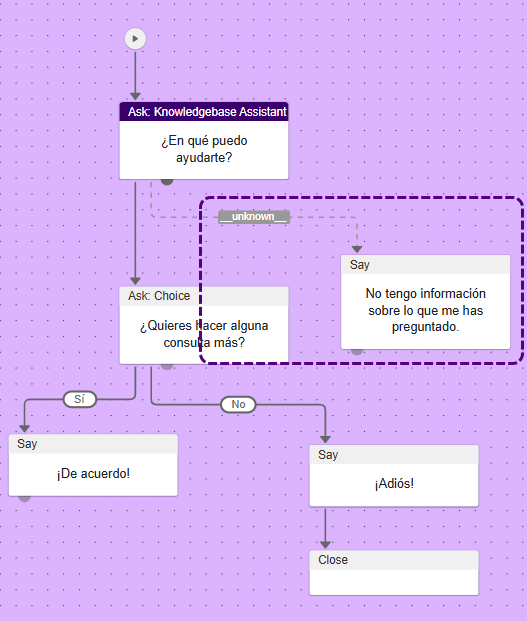
Always configure a message with the dialog trigger unknown so that it returns a message in case it cannot find an answer to the question the customer asked.
Afterwards, you can route the user to another flow, such as sending the conversation to your agents.
Otherwise, it will return to Ask Knowledgebase Assistant to continue the conversation.
2.2 Using FAQs
The FAQs section allows us to create quick answers based on intents for users’ frequently asked questions and thus avoid consuming Knowledgebase articles.
💡 Visit the following link to learn how to create your FAQs.
2.3 Using Routes
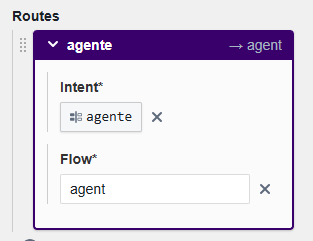
The Routes section of the node allows you to use intents to route the user to a specific flow based on the detected intent.
Create a new Route
- Click the + button and select/create an intent.
- Select the flow you want to send the user to based on intent detection.
3. Knowledgebase Say
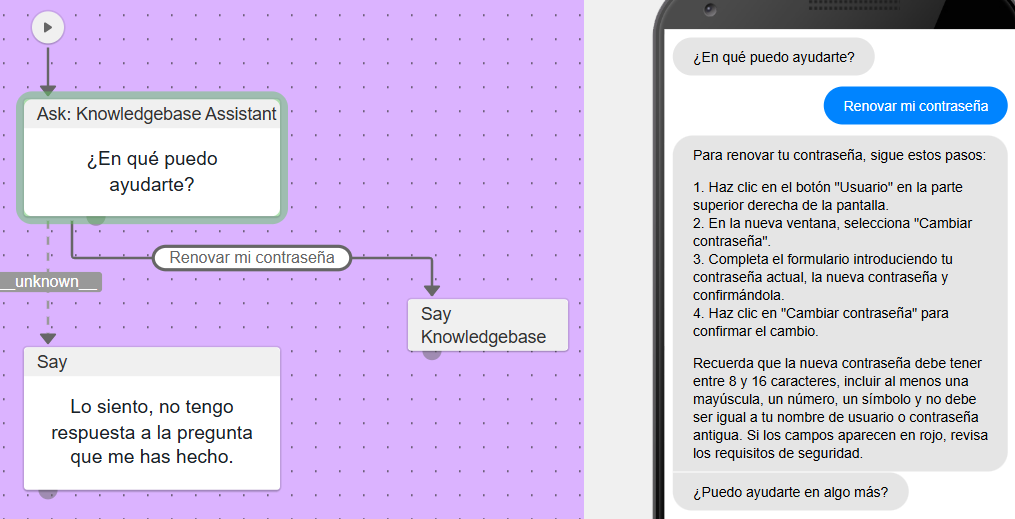
This Say node type searches for information based on the option selected by the user within an options menu.
Within Knowledgebase Assistant you can add selectable options and later invoke Say Knowledgebase to search for the answer to the option selected by the user:
4. Knowledgebase Agent Assistant
Thanks to the Knowledgebase Agent Assistant you can help your agents answer your customers’ questions using all the content created in your knowledge base.
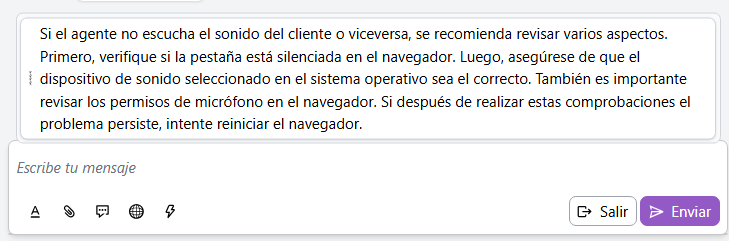
By clicking the ⚡ button and then “Help me!” the agent will invoke the knowledge base from the agent folder you created using the Knowledgebase Generator:

Agent Helper will return an answer based on the user’s question that the agent can select and send to the user:
4.1 Configure Agent Assistant folder
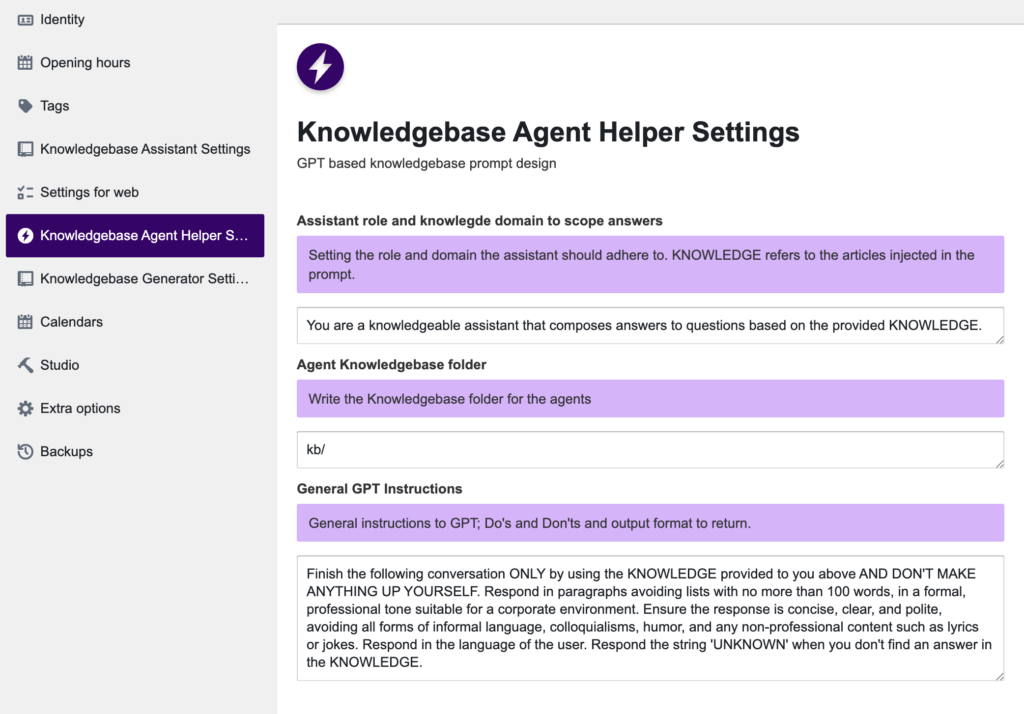
Go to the Settings section of the bot and select Knowledgebase Agent Helper Settings.
In the Agent Knowledgebase folder field, enter the folder from which it should retrieve the information.
If you want it to read information from all folders, leave the default root folder “kb/”.
5. FAQs
It doesn’t create the provided content—what can I do?
If your content comes from a website, check that your website does not block web scraping: this prevents the AI engine from extracting information from the website. Additionally, check that the website content is concise, well structured, and does not exceed 20,000 characters; otherwise, it will not be able to extract the content, or it will ultimately respond with a timeout and empty content.
If your content comes from a PDF, it is recommended that the PDF length does not exceed 4 pages. As with the website, check that the PDF format is correct (titles, subtitles, pagination, etc.) and that its structure is clear. Otherwise, just like the website, it will return empty content or respond with a timeout.
Is it mandatory to add the Additional prompt instructions?
If the content is clear and organized, it will be able to extract the information by default.
However, it is always recommended to provide context about the content it will receive and the points it should focus on when extracting the information and creating the knowledge article.
Can I create articles with the extended option for calls?
Technically you can, but it is not optimal for the following reason: the more content it has to summarize to build the answer, the longer the generation time will be.
To generate each answer, the user’s question is checked against the available articles, and from the article that matches the user’s question, the answer is built by locating where the user’s answer is found. All of this happens in milliseconds, but even so, the more articles there are and the longer the content to analyze within the article, the longer the response will take.
Can I use the same Knowledge across all channels?
Depending on the channel, the following is recommended:
If you are going to use the knowledge in calls, it is recommended that you generate the articles in short mode and do not exceed 20 articles of content. This is because voice prioritizes response speed, and therefore, the more content there is (number of articles) and the longer the article is (characters), the longer the response generation time will be.
In the case of chat, you can use the extended mode for creating articles and reach up to 50 articles, since response generation times in written channels are not as critical for the user.