
Omnichannel Contact Center
Agent FAQs
Reading time | 5 minutes
- CONTENT
- Disable saving energy settings from your browser
- Audio issues
- Webphone registration is in red
- The agent can’t see the notifications
- I can’t access with my credentials
- The agent doesn’t receive any inbound call
About
We describe most common issues related with the agent module the user can solve from his computer checking some easy steps.
Disable saving energy settings from your browser
OCC Requires a constant communication with our platform from your browser. If you have enabled the energy saving settings from the browser, the connection can be interrupted when you have inactivity period. If it happens, you will suffer issues due to the tab suspension mode from the browser.
Check these articles in order to disable these settings for our domain:
- Performance settings on Chrome
- Performance settings on Edge (Chromium)
- Performance settings on Firefox
Audio issues 🔊🎤
- The agent can’t hear anything
- The customer can’t hear the agent
- The agent can’t answer calls or perform outbound calls
Check the following setting:
1) Check permissions on the agent’s browser
Maybe the agent accidentally denied some permissions for the ccc.enreach.com site. Please, be sure all these permissions are allowed by default: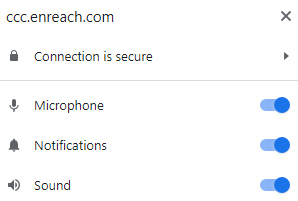
2) Check the audio device selected
Maybe the agent doesn’t have the correct audio device selected in his operating system.
Read the following articles to know how to choose the correct audio device in Windows or Mac OS:
- Check your sound device in Windows ⬅️
- Check your sound device in MacOS:
Webphone registration is always in red

The webphone agent requires that some IPs and ports must be allowed in your internet connection.
If the webphone registration circle is always in red, it means that your network can’t reach our service and the registration for the webphone service related to your agent. If it happens, you won’t be able to answer calls or make outbound calls.
If your PC is managed by your IT team, or your are under a VPN connection, please, be sure our IPs and ports are allowed ✅
Check our Technical Requirements here ⬅️
The agent can’t see the notifications
If the agent can’t see the notifications for inbound calls or for the incoming messages in chat service, check the following steps:
1) Allow notifications in your browser
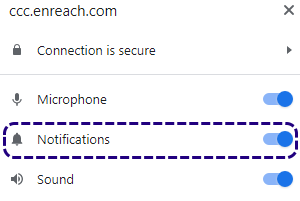
The agent denied the notifications from the ccc.enreach.com tab. This permission has to be allowed always.
2) The agent has disabled the notifications in his operating system
If Windows or MacOS are blocking the notifications from the browser, the agent won’t see any advice for inbound calls or new conversations.
Check the following user’s guides to see how to manage notifications from aplications in Windows and Mac OS.
I can’t access with my credentials
Remember you have 3 attempts in order to login with your current password. If you wrote wrong your password 3 times, your user will be blocked by security reasons.
How can I unblock my user?
Contact with your account administrator in order to unblock your user and establish a new password if it’s needed from the Account module.
💡 The first time you login with the new password, you will be requested to create a new one.
How can I change my password?
You can change your password from the User button at the top of the right. You must write your current password and establish a new one according to our password policy.
Password Policy
If the password fields turns red, it means that your new password is not under our password policy. Your new password must contains 8-16 characters, a capital letter, a number and a symbol. Do not use your username, or your old password.
The agent doesn’t receive any inbound call
The user is in available status but is not receiving any inbound call.
Check the following steps:
- Check if the agent is included in the queues.
- See how to manage queues and agents from Configuration Module.
- See how to manage queues and agents from Supervisor Module.
- If the agents are under skills, be sure the agent has the proper skills added. See how to manage skills.
- Check if the agent has the Mic permission enabled in the browser inside ccc.enreach.com. See audio issues section.
- Check if the webphone registration circle is in red. See webphone registration is in red section.
- Check if the agent’s computer lost the internet connection due to innactivity or internet issues. Check if your agent is disconnected from the CCC Enreach main tab due to internet connection issues. Recover the internet connection and re-load ccc.enreach.com.