
Omnichannel Contact Center
Skills Module
Reading time | 5 minutes
- CONTENT
- Before you start
- How it works?
- Add Skills (Step by Step)
- Skills Manage Skills and Score Levels
About
Skills module enables deliver the inbound call to the most suitable agent available.
Call distribution is based on the skills added to the queues and the skills score rating for each agent.
Before you start
Notice if you active skills based queues in the customer account, from that moment, the management of agents and queues will be from the skills module.
How it works?
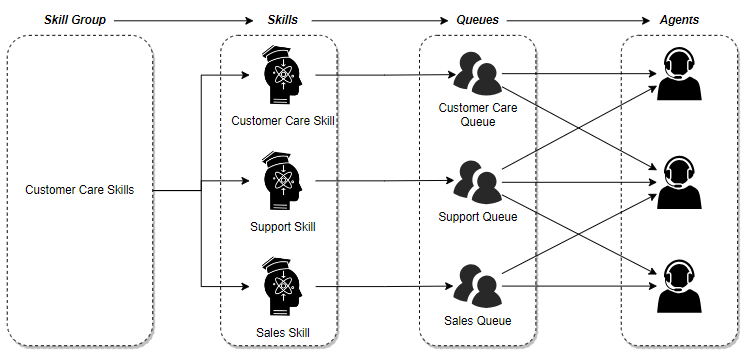
Skills group, skills, queues and agents
The skill based queues module works creating skills groups (could be one or more than one) that will include all the skills you will link to your queues and then to your agents:
Level scores on queues and agents
You can prioritize inbound calls from skill based queues and agents with more expertise using level scores for queues (optional) and agents.
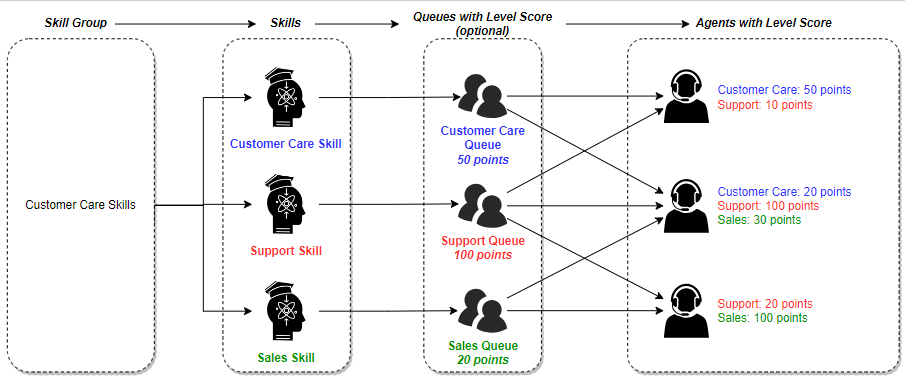
💡 In the diagram above, if an incoming call is in Customer Care Queue, and another call is in Support Queue, the system will first try to deliver the Support Queue call to the second agent (100 points). In case the agent is not available, it will deliver this call to agent 3 (20 points).
Add Skills (Step by Step)
Create your skills groups
- Enter your user and password on ccc.enreach.com
- Open “Skills” module
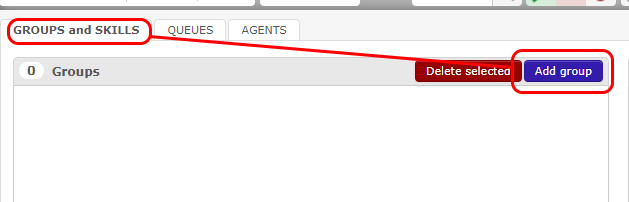
- Choose the Groups and Skills tab and Add a group:

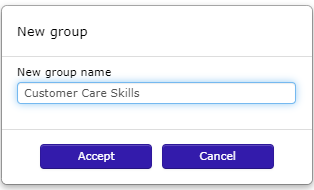
- Name your Group and Accept:

- Choose the group and create the skills clicking on “Add Skill”:

- Create all the skills you want. We recommend one per queue (if we have 3 queues we will create 1 skill for each one):



Add skills to your queues
- Go to the “Queue” tab and add the related skill choosing the queue and clicking on “Add skill” button:

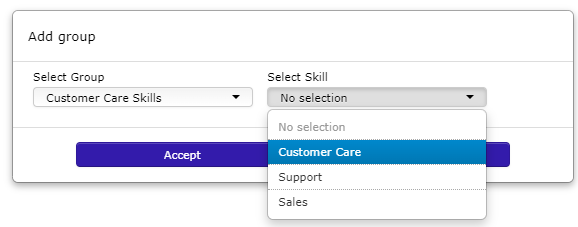
- Choose the skill Group and the skill you want to add to the queue. Click on Accept.


⚠️ Once you added a skill to a queue, it can’t be shared with the rest of queues. - The skill will be added to your queue.


- Repeat for each queue.




Don’t active Skills check on Queues till you finish all the configuration related to the skills.
Rate Level Score on Queues (optional)
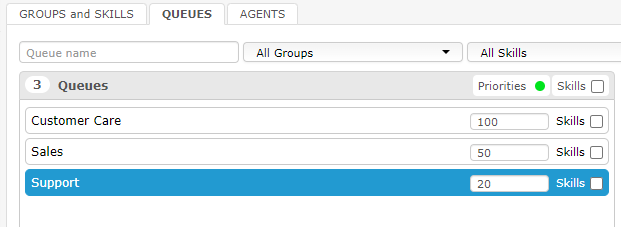
You can add a Level Score to the queues. The calls of the queues with the highest score will be prioritized over the rest.
- Active Priorities button (it will turn green)
- Rate each queue with a level score
Add skills to your agents
From agent tab you can add skills agent by agent or you can add skills to multiple agents with the same profile.
Add skills one by one
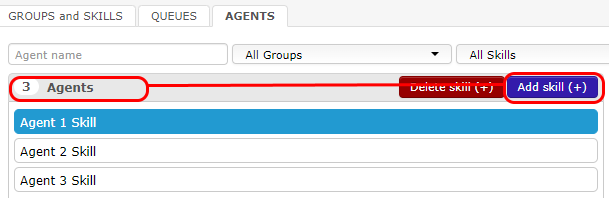
- Choose the agent and click on “Add skill” button:


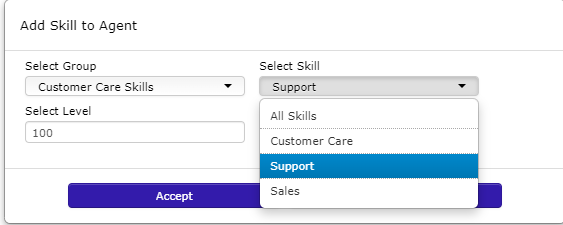
- Choose the skill Group, the Skill and the Level score (the higher the score, the more the priority of the queue/agent to receive calls related to that skill):


- Accept. The skill and the level score is added to your agent:


- Repeat for each agent.





Add same skill profile to multiple agents
If you have more than one agent with the same skill profile you can choose the following methods to apply them:
1) Add skill button on the agents column
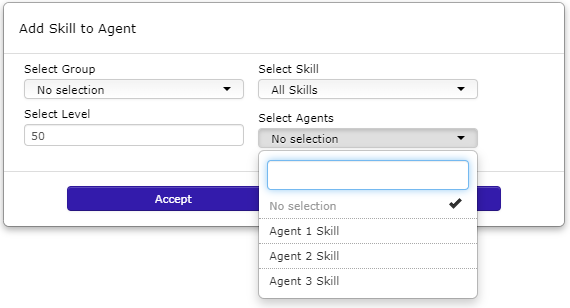
- Click on the “Add skill ” button on the agent column:

- Choose the Skill Group, the skill to be linked (or all), Level score and the agents to apply this configuration:

⚠️ If one of the agents selected has another skill profile before, it will be deleted and replaced for the new one. - Accept. All the agents selected will share the same skills profile and level score.
 ” button on the agent column:

2) Clone skills
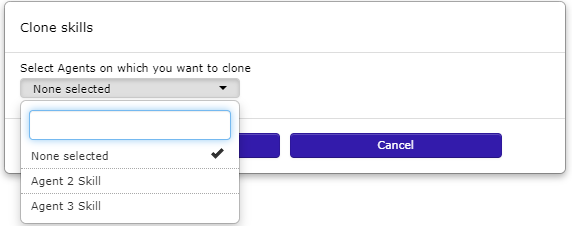
You can copy the same skill profile from an agent to the rest of agents using the “Clone skills” button.
- Choose the referent agent and click on the “Clone skills” button:

- Choose the agents you want to copy the skill profile:

⚠️ If one of the agents selected has another skill profile before, it will be deleted and replaced for the new one. - Accept. All the agents selected will share the same skill profile from the reference agent.



Active skill based queue
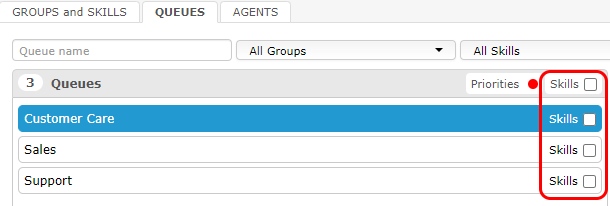
Once the queues and the agents have the skills added, we can active the skill based queues check on the Queue tab.
- Go “Queues” tab and active the Skill based queues check individually or to all the queues at the same time.

- Click on Validate to apply changes. It will take 2-5 minutes:

⚠️ If you don’t click on Validate button changes will not be applied.



Manage Skills and Score Levels
Change Skills added to an agent
Once skills are added to the agents, you can change the skills added from the Skills module or the Supervisor module.
From Skills module
- Choose the agent on the “Agents” tab on the Skills module
- Choose the new skill for the agent and rate a new Level Score (if it’s necessary):

- Click on Validate to apply changes.


Remember you can use the “Clone skills” button to copy the same skill profile to the rest of agents.
From Supervisor
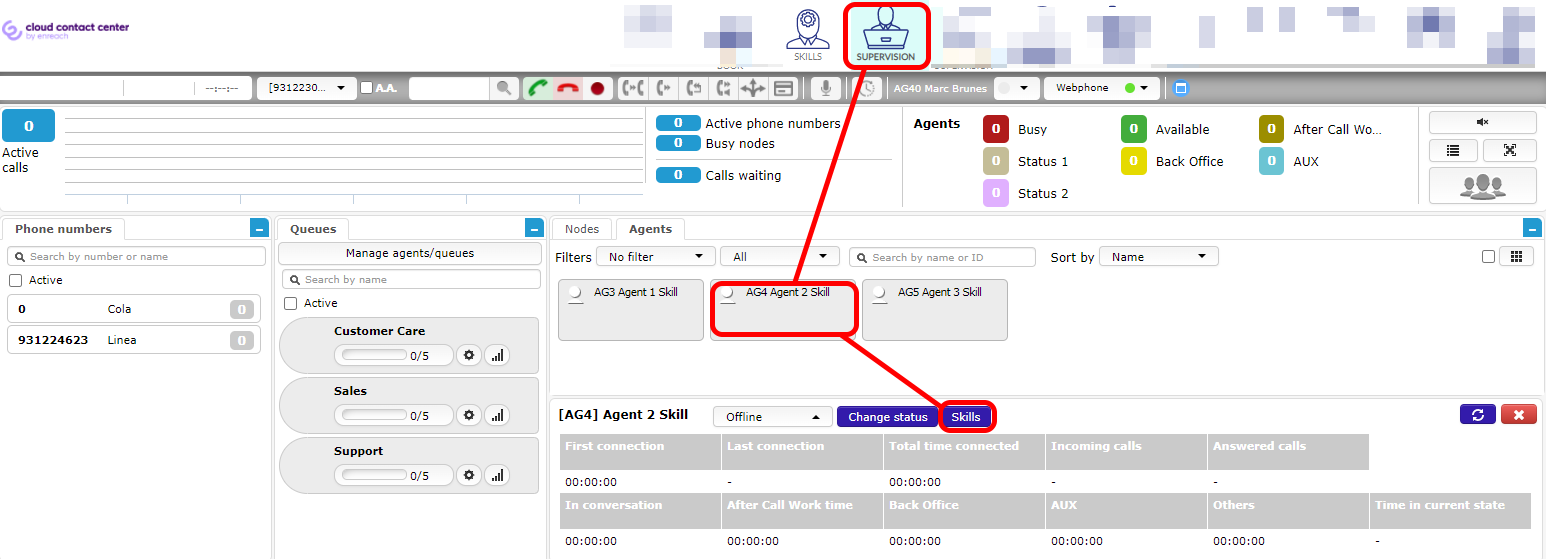
- Open the Supervisor module.
- Choose the agent on the Supervisor module and then click on the “Skills” button:

You will be redirected to the Skills module for the AG selected (for e.g.: AG4 Agent 2 Skill): - Choose the new skill for the agent and rate a new Level Score (if it’s necessary).
- Click on Validate to apply changes.

Change Skills added to a queue
You can change Skills added to a queue only from Skills module.
- Choose the queue on the “Queues” tab on the Skills module
- Choose the new skill for the queue and rate a new Level Score (if it’s necessary):

- Click on Validate to apply changes.
